How to Set Up a VPN on Android (and Use Always-On VPN)
How to set up a VPN on Android with an app or the built-in client, turn on Always-on VPN and Block connections without VPN, and stop Android killing it.
To set up a VPN on Android, install a VPN app from Google Play, sign in, tap OK when Android asks for permission to set up a VPN connection, and tap Connect. A key icon in the status bar shows the VPN is on. Android also has a built-in client in Settings for IKEv2 servers, and an Always-on VPN switch that keeps the tunnel up and can block all traffic whenever it drops.
- The app route takes two minutes: install, sign in, allow the connection request, tap the power button.
- Android's built-in client, under Settings, Network & internet, VPN, supports IKEv2 only on Android 12 and later.
- Always-on VPN with Block connections without VPN acts as a system-level kill switch.
- Battery saving on Samsung, Xiaomi and other phones can kill the VPN; set the app to Unrestricted.
Method 1: set up a VPN app on Android
A VPN app is the right choice for almost everyone, because it brings its own servers, protocols and reconnect logic. These steps use the FortisVPN Android app; other apps ask for the same permission in the same order.
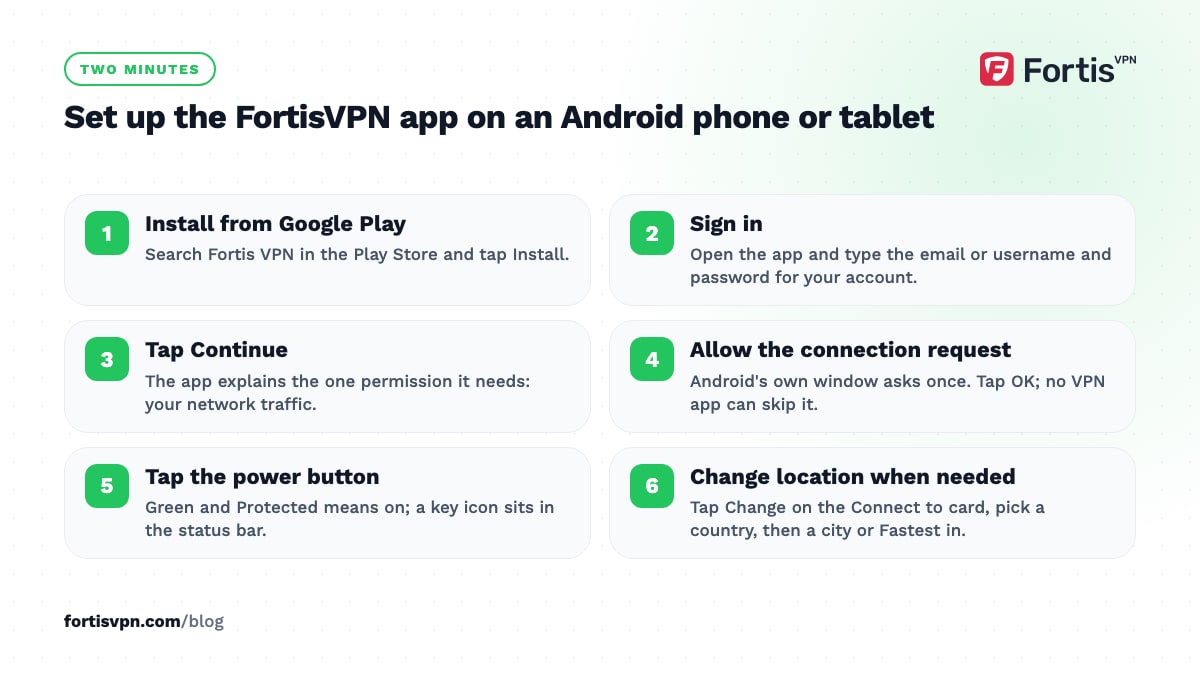
- Install the app. Open the Play Store, search for Fortis VPN and tap Install. The same app runs on Android tablets.
- Sign in. Open the app and type the email or username and password from your account.
- Read the permission notice and tap Continue. The app explains the one permission it needs: your network traffic.
- Allow the VPN connection. Android shows its own Connection request window. Tap OK. This is Android's safeguard, and no VPN app can skip it.
- Tap the power button. The screen turns green and shows Protected, with the VPN's address under Your IP. A key icon appears in the status bar for as long as the VPN is on.
- Change location when you need to. On the home screen, tap Change on the Connect to card, pick a country, then a city or Fastest in. Picking a city connects straight away.
The location steps are pictured in choose a server location on Android. If you tapped Cancel at the Connection request, tap the power button again and it comes back.
Settings worth changing after you connect
- Protocol. In the app, open the Account tab, then Protocol under Connection. Leave it on Automatic unless the VPN will not connect; on hotel, school or office WiFi switch to OpenVPN (TCP 443), which passes through filters that block the others. See change the VPN protocol on Android.
- Split tunnelling. Choose which apps go through the VPN. Keep a banking app or a local food-delivery app on your normal connection while the browser stays protected. The trade-offs are in what is split tunnelling.
- Notifications. Leave the app's notifications on. Android uses that persistent notification to keep the VPN service alive; silence it and some phones stop the VPN within minutes.
Method 2: Android's built-in VPN client
Android can connect to a VPN server with no app at all, but only to one kind. Since Android 12, the built-in client supports IKEv2/IPsec and nothing else; PPTP and L2TP were removed. That makes it useful for a work or university VPN that gives you IKEv2 details, and of little use for consumer services, which run WireGuard or OpenVPN through their own apps.
- Open the VPN screen. Settings, Network & internet, VPN. On a Samsung phone it is Settings, Connections, More connection settings, VPN. If you cannot find it, search Settings for "VPN".
- Add a profile. Tap the plus sign, or the three dots and then Add VPN profile on Samsung.
- Fill in the details. Name, Type (IKEv2/IPsec MSCHAPv2 for a username and password, IKEv2/IPsec PSK for a pre-shared key, IKEv2/IPsec RSA for certificates), Server address, then the identifier or credentials your provider gave you.
- Save and connect. Tap the profile, enter your username and password if asked, then Connect. The key icon appears when it is up.
The built-in client has no server list, no protocol choice, no split tunnelling and no reconnect logic beyond Always-on VPN.
How to turn on Always-on VPN and Block connections without VPN
Always-on VPN tells Android to start the VPN when the phone boots and to bring it back whenever it drops. Block connections without VPN adds the second half: if the tunnel is down for any reason, nothing leaves the phone until it is back. Together they behave like a kill switch, enforced by Android rather than by the app.
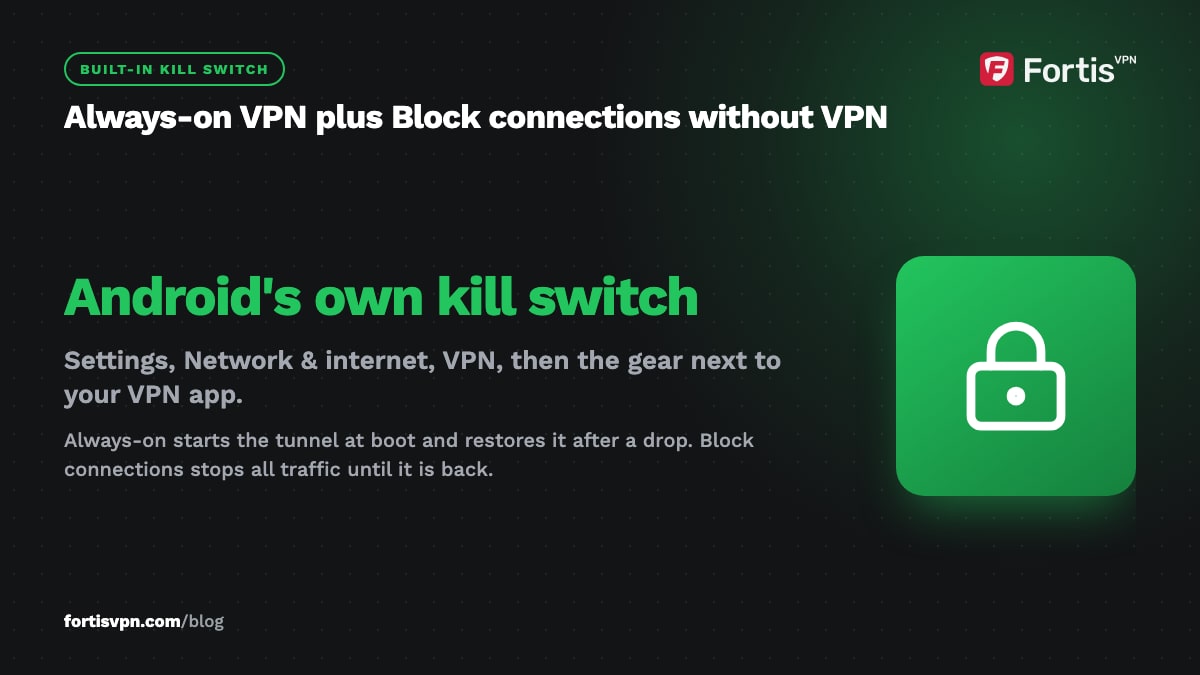
- Open the VPN list. Settings, Network & internet, VPN (Samsung: Settings, Connections, More connection settings, VPN). Every VPN app you have installed appears here.
- Tap the gear icon next to your VPN app. The two switches are on the next screen.
- Turn on Always-on VPN. The app connects at boot from now on.
- Turn on Block connections without VPN. Android warns that you will have no internet until the VPN connects. Tap OK.
Three caveats. Only one app can be the always-on VPN, and Android runs only one VPN at a time in any case. Hotel and airport sign-in pages cannot load while Block is on, so switch it off for a minute on those networks. And Android still sends a few of its own connectivity checks outside the tunnel when it joins a new WiFi network, so the block is strong but not a perfect seal. The reasoning behind fail-closed behaviour is in what is a VPN kill switch.
Stop Android killing your VPN in the background
If the VPN disconnects when the screen goes off, the phone's battery manager has closed it. Stock Android on Pixel phones rarely does this; Samsung, Xiaomi, Huawei, OnePlus and Oppo phones often do. Menu names shift between versions, so use the Settings search if a path does not match.
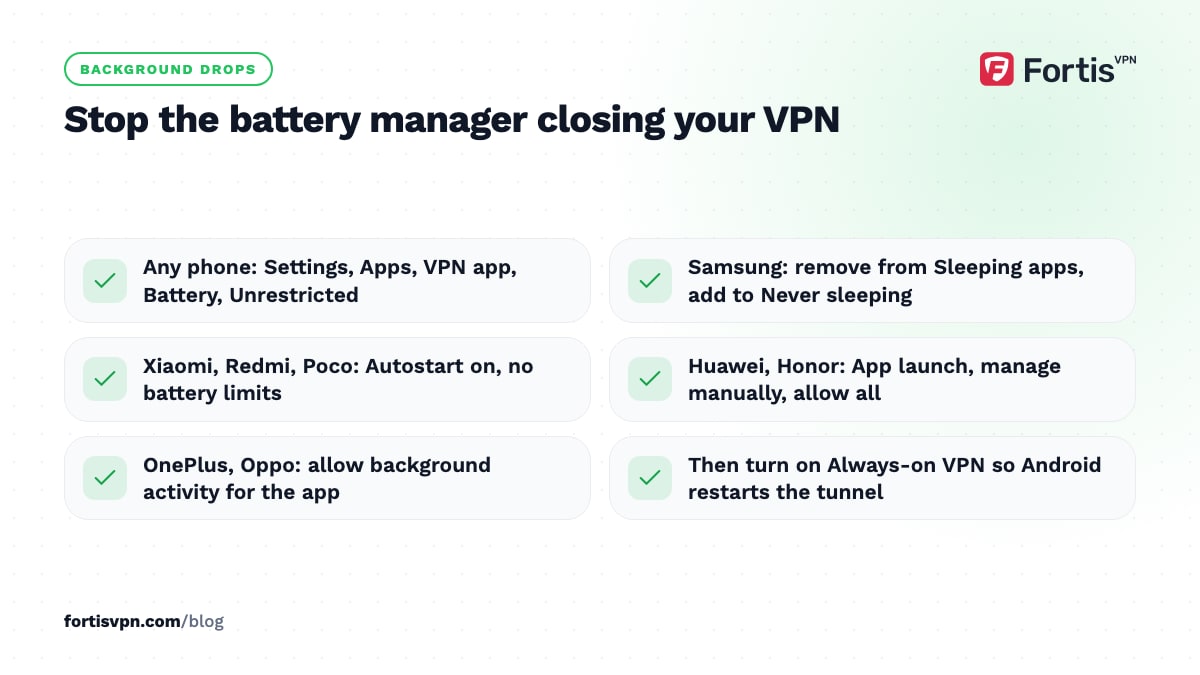
- Any Android phone. Settings, Apps, your VPN app, Battery, then choose Unrestricted. This is the most effective change.
- Samsung (One UI). Also open Settings, Battery, Background usage limits, and make sure the VPN app is not in Sleeping apps or Deep sleeping apps. Add it to Never sleeping apps.
- Xiaomi, Redmi and Poco. Settings, Apps, Manage apps, your VPN app: turn on Autostart and set Battery saver to No restrictions.
- Huawei and Honor. Settings, Battery, App launch, your VPN app: switch off automatic management and allow it to auto-launch and run in the background.
- OnePlus and Oppo. In Settings, Battery, open the app battery management list, find your VPN app and allow background activity.
Turn on Always-on VPN as well, so that even if the phone does kill the app, Android restarts the tunnel. If the drops continue, the checklist in VPN keeps disconnecting covers WiFi, router and protocol causes.
Is Private DNS the same as a VPN?
No. Private DNS, found at Settings, Network & internet, Private DNS on Android 9 and later, encrypts only your DNS lookups, the step where your phone asks which server a website lives on. It stops the WiFi owner or your mobile carrier reading the names of sites you visit. It does not change your IP address, does not encrypt the pages themselves, and does not hide your location from websites. A VPN does all three.
The two can clash. If Private DNS is set to a custom hostname, some phones keep sending DNS to that server even while the VPN is connected, leaving lookups outside the tunnel or breaking name resolution. If websites will not load with the VPN on, set Private DNS to Automatic and reconnect.
Android VPN not working: the usual causes
- Another VPN or ad blocker is active. Android runs one VPN at a time, and many ad blockers register as a VPN. Open Settings, search for VPN, and turn off Always-on for anything that is not your VPN app. Details: another VPN is interfering on Android.
- "Your device does not support VPN applications". You are in a guest user or a work profile, parental controls such as Family Link block VPN apps, or the device is a cheap tablet or box with VPN support stripped out. Switch to the main user, update the device, and ask the parent account to allow the app.
- Work profile. A VPN in your personal profile covers personal apps only; work apps keep using whatever your employer configured. That is by design.
- Connected but nothing loads. Switch protocol, set Private DNS to Automatic, turn off Data Saver for the app, and on a restrictive network try OpenVPN (TCP 443).
- Stuck on connecting. Restart the phone, then run through FortisVPN for Android will not connect.
Using FortisVPN on Android
The FortisVPN Android app installs from Google Play on phones and tablets and follows the steps above. Protocol lives under the Account tab, with Automatic, WireGuard, and OpenVPN over UDP or TCP 443 for networks that block VPNs. Split tunnelling lets you pick which apps use the tunnel. Add Always-on VPN and Block connections without VPN in Android's own settings and you have a kill switch the phone enforces. One account connects up to 10 devices at the same time, so the same login works on a Windows PC and a TV. Every plan starts with a 7-day free trial: a card is needed, you pay nothing today, and cancelling before day 7 costs nothing.
Frequently asked questions
Can I use a VPN on Android without an app?
Yes, through Settings, Network & internet, VPN, but only for IKEv2/IPsec servers on Android 12 and later. You type in the server address and credentials your provider or employer gives you. Most consumer VPNs do not publish IKEv2 details for Android because their apps use WireGuard or OpenVPN, so in practice the built-in client is for work and university VPNs.
Does Always-on VPN drain the battery?
A little, because the phone keeps the tunnel alive and reconnects it after every network change. On a modern phone with WireGuard it is a small share of daily use, well below the screen or the mobile radio. The bigger drain is constant reconnecting on weak WiFi; fix the WiFi or switch to mobile data.
Why does my VPN turn off on a Samsung phone?
One UI's battery manager puts apps it thinks are idle to sleep, and a quiet VPN service looks idle. Set the VPN app to Unrestricted under its Battery settings, remove it from Sleeping apps, add it to Never sleeping apps, and turn on Always-on VPN so Android restarts the tunnel if the app is closed anyway.
Can I use Private DNS and a VPN at the same time?
You can leave Private DNS on Automatic alongside a VPN, and most phones then send DNS through the tunnel as the VPN intends. A custom Private DNS hostname is the risky setting, because the phone may keep using it outside the tunnel. If sites fail to load or a leak test shows your ISP's resolver while connected, switch Private DNS to Automatic.
Can I use a VPN on an Android tablet?
Yes, the same app from Google Play runs on Android tablets, and the steps are identical: install, sign in, accept the Connection request, connect. Always-on VPN and Block connections without VPN are available too. The exception is tablets without Google Play, such as some budget and children's tablets, which may not run VPN apps at all.
Last updated: 13 October 2026