How to Check If Your VPN Is Working (IP, DNS, WebRTC Tests)
How to check if your VPN is working in a minute: compare your IP, then run DNS, WebRTC, IPv6 and kill switch tests. Plus what to do when a test fails.
To check if your VPN is working, note your public IP address with the VPN off, connect, then check it again. If the address and the country have changed to match the server you chose, the tunnel is up. That answers the basic question. A full test also covers DNS, WebRTC and IPv6, because a VPN can show the right IP and still leak your real one through a side door.
- Your IP must change and the country must match the server you picked.
- DNS lookups should go to the VPN's resolvers, not your ISP's.
- WebRTC and IPv6 can expose your real address even when the main IP looks right.
- Test the kill switch once, then re-test after app updates or network changes.
The 60-second check
Open What is my IP with the VPN disconnected. Write down the address, the city and the ISP name it shows. Connect to a server, reload the page, and compare.
A working VPN shows a different address, a location in the server's country, and an organisation name that is not your home ISP. If any of those three still match what you wrote down, the VPN is not carrying your traffic, whatever the app says. This is the VPN test most people need; the leak tests below are for when you want certainty.
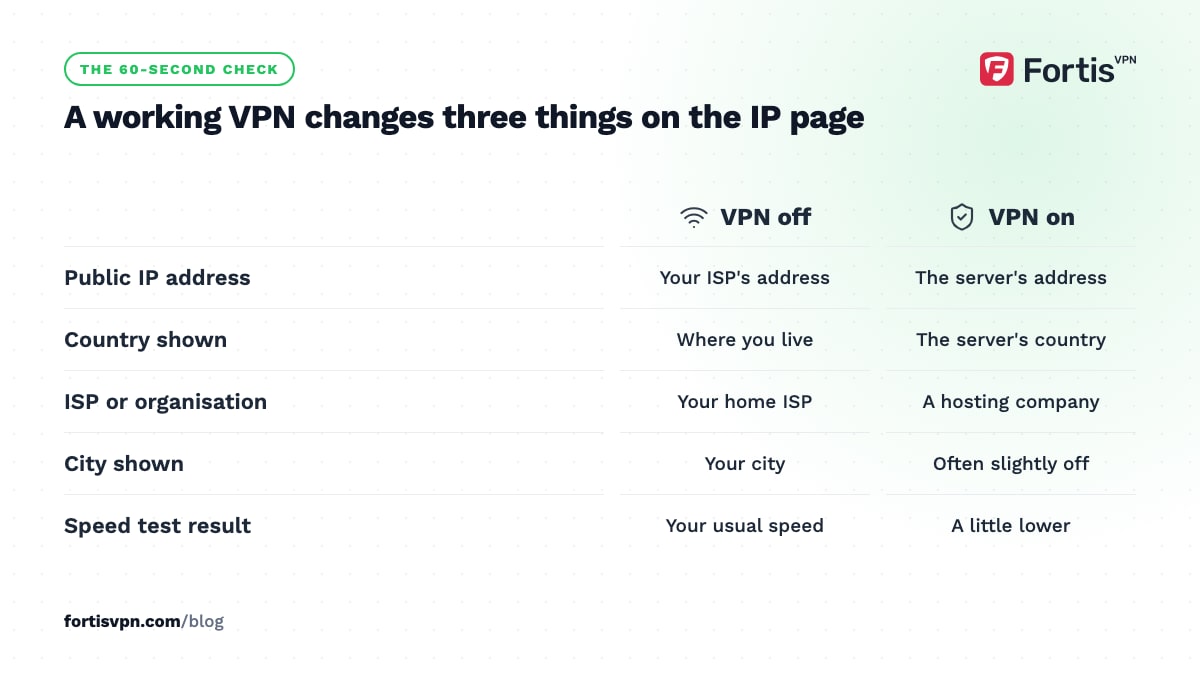
Other quick signs that something is wrong: Google shows your local language and results, shopping sites show local prices and currency, and your speed test result is identical to the one without the VPN. Encryption and the extra hop usually cost a little speed, so an identical result is a hint rather than proof.
Step 1: Does your IP address match the server?
Your public IP address is the one websites see. It belongs to whoever sends your traffic out to the internet. Without a VPN that is your ISP. With a VPN connected it should be the VPN server.
Three things to read on the IP page:
- The address itself. It must differ from the one you saw before connecting.
- The country. It should match the server you selected. The city is often off by a few hundred kilometres because IP geolocation databases are approximate, so a wrong city with the right country is normal.
- The ISP or organisation. It should name a hosting company or the VPN provider, not your home broadband or mobile carrier.
If the country is right but a site still treats you as local, the site is probably reading a saved cookie, your browser's location permission, or GPS on a phone. Clear that site's cookies or open a private window, deny location access, and reload.
Step 2: How do I know if my DNS is leaking?
DNS is the lookup that turns a name like example.com into an IP address. If those lookups go to your ISP's DNS servers while the rest of your traffic goes through the VPN, your ISP still gets a list of every site you visit. That is a DNS leak. Our guide on what a DNS leak is and how to fix it covers the causes in depth.
To test it, open a DNS leak test page while connected (search for one; most are run by VPN companies and work with any VPN). It makes your device look up a set of unique names and reports which servers performed the lookups. You want to see servers owned by the VPN provider or a hosting company, in or near the server's country. Seeing your ISP's name, or servers in your home country while you are connected elsewhere, means a leak.
On Windows you can also check without a website. Open Command Prompt, type nslookup example.com and read the Server line at the top of the output. With the VPN connected it should show an address that belongs to the VPN connection, not your router's address (often 192.168.x.x) and not your ISP's resolver.
Steps 3 and 4: WebRTC and IPv6 leak tests
These two leaks slip past an otherwise working VPN, so test them separately.
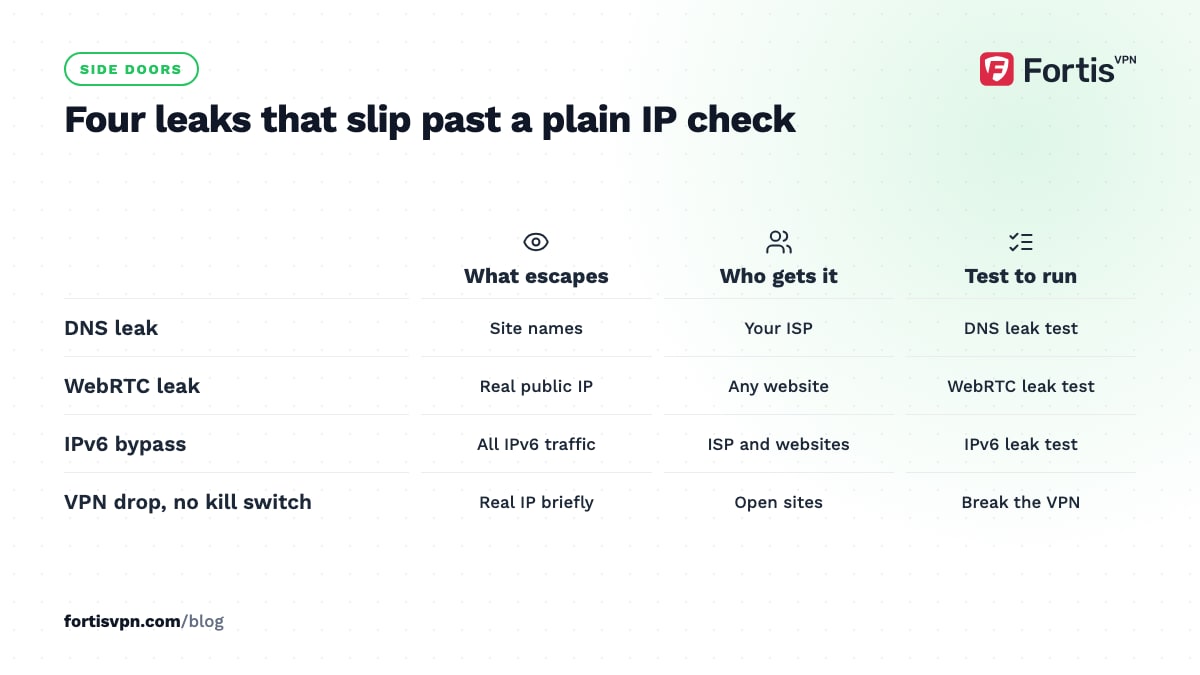
WebRTC is the browser feature behind video calls. To set up a call it asks your network for your addresses, and it can hand them to any website that asks. Open the WebRTC leak test while connected. The page should show the VPN address or nothing at all. If it shows the address you wrote down in the 60-second check, WebRTC is leaking. As of October 2026, Chrome, Edge, Firefox and Safari all hide your local network address behind a random .local name by default, so the thing to watch for is your real public IP appearing.
IPv6 is the newer addressing system that many ISPs now provide alongside the usual IPv4. Some VPN set-ups only tunnel IPv4. When a site is reachable over IPv6, your device may take that route and bypass the VPN entirely. Open the IPv6 leak test while connected. A pass is either no IPv6 address or one that belongs to the VPN. Your ISP's IPv6 address showing means a bypass.
Step 5: Does the kill switch actually block traffic?
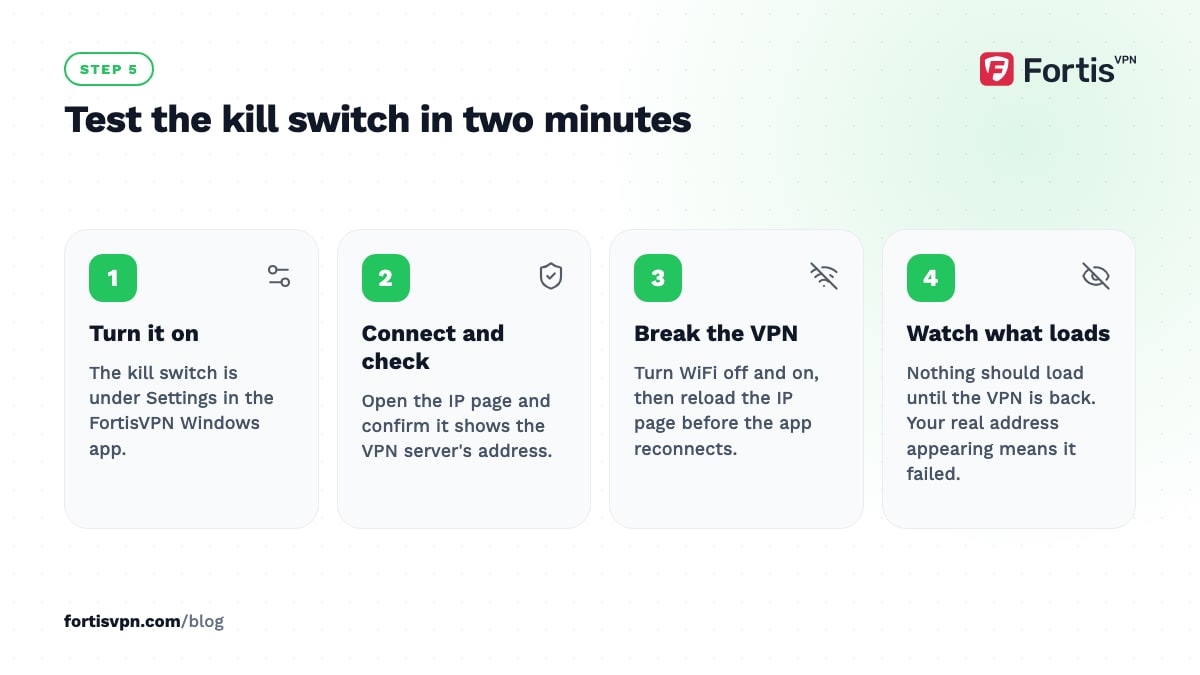
A kill switch blocks all internet traffic if the VPN drops, so your real IP is never exposed during the seconds it takes to reconnect. Testing it takes 2 minutes:
- Turn the kill switch on. In the FortisVPN Windows app it is under Settings.
- Connect and open the IP page. Confirm it shows the VPN address.
- Break the VPN on purpose. Turn WiFi off and back on, then reload the IP page straight away, before the app has reconnected. On Windows you can also end the VPN process from Task Manager.
- Watch what happens. With a working kill switch, nothing loads until the VPN is back up. If the page loads and shows your real address during that gap, the kill switch is not doing its job.
Step 6: Streaming and location check
Passing every leak test does not guarantee that a streaming service accepts the connection. Streaming platforms keep their own lists of known VPN addresses and block them even when nothing leaks.
Connect to a server in the right country, open the service in a private window, and look at the catalogue or the home page. If it still shows your home library, or shows a proxy error, switch to another server in that country. If that fails too, ask support for one that currently works. The streaming service detects VPN page has the full checklist, including the mobile GPS and app cache issues that cause false "local" results.
What to do if a test fails
Match the failed test to the fix. Work from the top; most problems are solved by the first two rows.
| Failed test | Most likely cause | Fix |
|---|---|---|
| IP unchanged | App not connected, or another VPN or proxy is winning | Reconnect, pick a different server, turn off other VPN, proxy and ad-blocking apps |
| Wrong country | Geolocation database lag, or the automatic server choice | Pick the country by hand; if the country is right, ignore a wrong city |
| DNS leak | Browser Secure DNS, manual DNS on the adapter, Windows parallel lookups | Turn off Secure DNS in the browser, remove manual DNS entries, change protocol, reconnect |
| WebRTC leak | Browser asks the network directly | Firefox: set media.peerconnection.enabled to false; Brave: WebRTC IP handling policy; Chrome: a WebRTC-limiting extension |
| IPv6 leak | ISP gives IPv6 and the tunnel only carries IPv4 | Windows: untick Internet Protocol Version 6 in the adapter's properties, then reconnect |
| Kill switch fails | Switch off, or firewall or antivirus overriding it | Turn it on in Settings, allow the app through the firewall, reinstall if needed |
The leak troubleshooting page walks through each fix step by step. If a leak survives all of it, send support a screenshot of the failed test; the server names on it tell them where the traffic is escaping.
Checking FortisVPN
The three test pages on this site work with any VPN, not only FortisVPN. With FortisVPN connected, the IP page should show an address in the country you chose, and DNS lookups travel through the tunnel to resolvers on the VPN side, so a DNS test should not show your ISP. The Windows app has a kill switch under Settings, with an option to launch at startup so you are covered from the moment the PC boots; the steps are in kill switch and startup settings. If a test fails, change protocol under Settings (WireGuard, or OpenVPN TCP on port 443 on networks that interfere) and re-run it. Every plan comes with a 7-day free trial, so you can run all of these tests before you pay anything.
Frequently asked questions
How do I know if my VPN is actually working?
Compare your public IP address before and after connecting on a page like What is my IP. A working VPN shows a different address, in the server's country, with an organisation that is not your ISP. For a complete answer, also run DNS, WebRTC and IPv6 leak tests, which catch traffic slipping around the tunnel.
Why does my VPN say connected but my location is the same?
Usually the website is reading a saved cookie, your browser's location permission, or GPS on a phone rather than your IP. Open a private window, deny location access and reload. If the IP page itself still shows your home address, the app is connected but not routing traffic: reconnect, change protocol, or turn off other VPN and proxy apps.
Can a VPN leak my IP address?
Yes. The main routes are DNS lookups going to your ISP, WebRTC in the browser asking the network directly, IPv6 traffic bypassing an IPv4-only tunnel, and the gap after a dropped connection when there is no kill switch. Each has its own test and fix, and none of them show up on a plain IP check.
How often should I test my VPN?
Run the full set once when you install the app, once after any major app or operating system update, and whenever you move to a new network such as a hotel or office. A quick check of your VPN connection on the IP page before anything sensitive takes a few seconds and catches the common case where the app silently dropped.
Does a VPN change my IP address?
Yes. While connected, websites see the VPN server's address instead of the one your ISP gave you, and your location appears to be the server's country. Your real IP still exists and your ISP still knows it; the VPN hides it from the sites you visit and hides those sites from your ISP.
Last updated: 15 October 2026