How to Set Up a VPN on Android TV and Google TV
Set up a VPN for Android TV or Google TV in five minutes: install the app from Google Play, sign in with a code, pick a country and connect. Fixes included.
The quickest way to set up a VPN for Android TV or Google TV is to install the VPN app from the Google Play Store on the TV itself. Sign in, pick a country and press connect. No router changes, no cables and no extra hardware. With FortisVPN, sign-in uses a short code you type on your phone rather than a password pecked out with the remote, so the whole job takes about five minutes.
- Android TV and Google TV run the same apps, so one VPN app covers both.
- Install from Google Play on the TV, sign in with a code, choose a location, connect.
- Turn on auto-connect and split tunnelling so the VPN looks after itself.
- TVs without Google Play need a router, a streaming box or a different approach.
Which TVs run Android TV or Google TV?
Google TV is the newer home screen that runs on top of Android TV OS. Both use the same Google Play Store and the same apps, so an Android TV VPN app works on either. The difference is the menu layout, not what you can install.
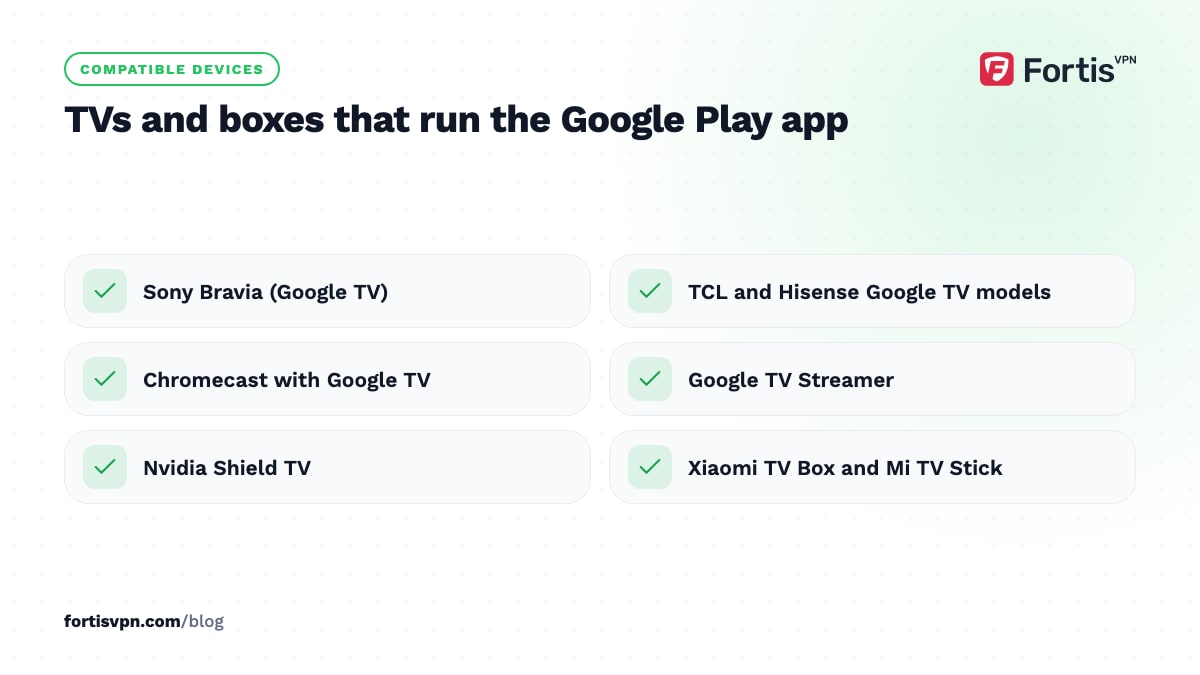
As of October 2026, you will find Android TV or Google TV built into:
- Sony Bravia sets, which have shipped with Google TV across most of the range for several years.
- TCL and Hisense sets in many markets. Both brands also sell models on Roku TV, Fire TV or VIDAA, so check the box or the home screen.
- Xiaomi TVs and the Mi Box and Mi TV Stick streaming devices.
- Philips TVs from earlier years and some 2025 OLED models. Philips has announced that its 2026 sets use its own Titan OS, which is not Android.
- Streaming devices: Google TV Streamer, the Chromecast with Google TV it replaced, Nvidia Shield TV and dozens of Android TV boxes.
Not sure what you have? If the home screen has a Google Play Store app, or Settings shows an Android TV OS version under About, this guide applies. If the store is called something else, skip ahead to the section on TVs without Google Play.
Choosing a VPN for Android TV and what else you need
- A VPN subscription with an Android TV app. Check for the app on Google Play before you pay. FortisVPN covers Android TV and Google TV from one account, and the same account works on Windows, Android phones and Fire TV, up to 10 devices at the same time.
- A Google account signed in on the TV. Google Play will not install anything without one. It can be any Google account; it does not have to match your VPN login.
- A phone or computer nearby for the code sign-in. It saves you typing an email address and password with the remote.
- A decent WiFi signal or an Ethernet cable. A VPN cannot fix a TV that already buffers without one. If the TV sits far from the router, a cable or a 5 GHz network helps more than any VPN setting.
How to set up a VPN on Android TV step by step
These steps use the FortisVPN app. Other apps follow the same pattern, minus the code sign-in.
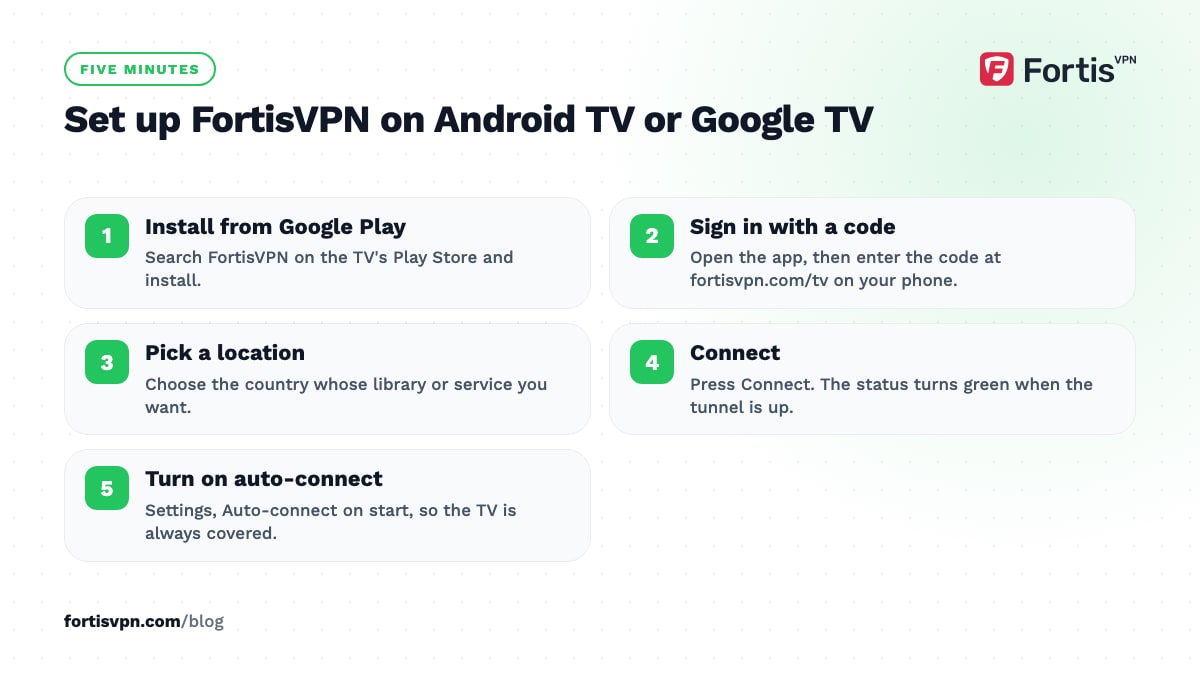
- Open Google Play on the TV. Search for FortisVPN using the on-screen keyboard or the microphone button on the remote. Select Install, then Open. The Android TV install guide has a screenshot of each screen.
- Choose Sign in with a code. The TV displays a short code and asks you to visit fortisvpn.com/tv.
- On your phone, go to fortisvpn.com/tv. Sign in to your FortisVPN account if asked, type the code from the TV screen and confirm. The TV signs in by itself within a few seconds. If you prefer, you can type your email and password on the TV instead; the code sign-in guide covers both routes.
- Allow the connection request. The first time you connect, Android shows a system prompt asking permission to set up a VPN connection. Select OK. This appears once.
- Pick a location. Choose the country you want to appear in. For speed, pick the nearest country; for a streaming library, pick the country where that library lives.
- Press Connect. The status changes to connected. Open a streaming app and start watching.
To check it worked, open the TV's browser if it has one and visit the IP checker. The country shown should match the server you picked. Without a browser on the TV, the quickest test is to open a streaming app and confirm the catalogue changed.
Settings worth turning on after the first connection
The defaults work, but four settings make a VPN on an Android smart TV far less annoying to live with.
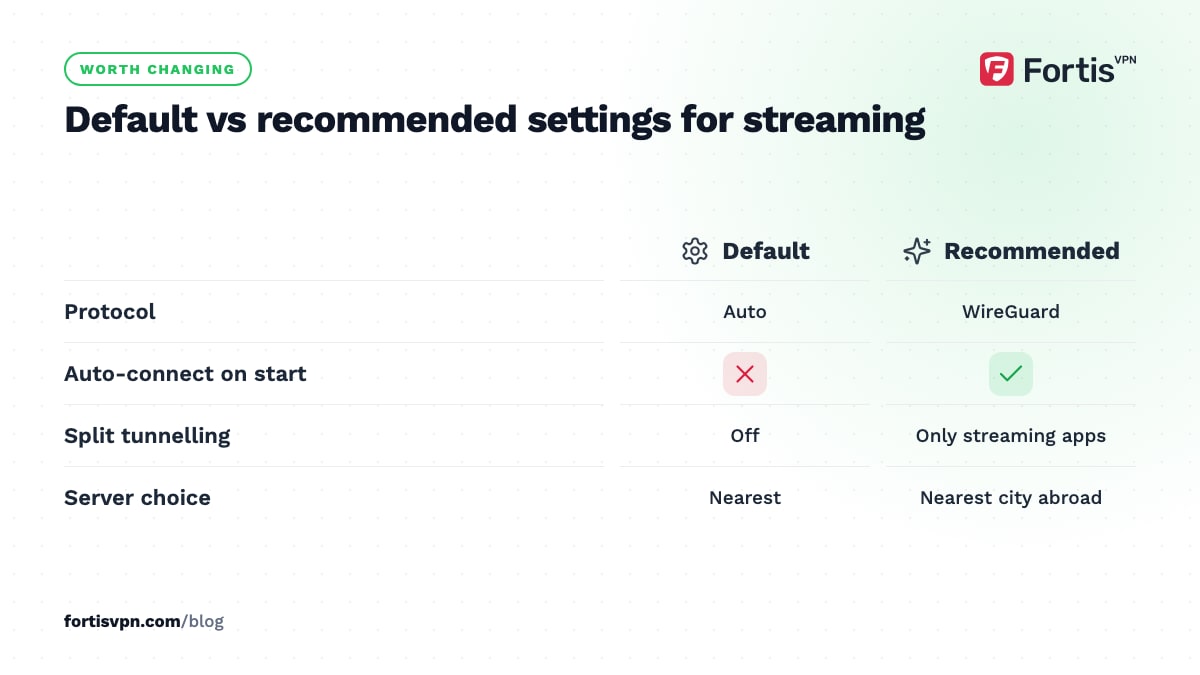
- Auto-connect. Turn this on and the app connects every time the TV wakes up, so you never discover halfway through an episode that the VPN was off. See the auto-connect guide.
- Split tunnelling. Choose which apps use the VPN. A common setup sends only the streaming apps through the tunnel and leaves local catch-up apps, casting and smart-home apps on the normal connection. The split tunnelling guide shows where the toggle lives.
- Protocol. Leave it on Auto unless something misbehaves. WireGuard is the fastest choice for video. If the TV is on a network that blocks VPNs, switch to OpenVPN TCP, which travels on port 443 and looks like ordinary HTTPS traffic.
- Tracker blocker. Blocks known tracking domains at the connection level, which cuts down the data that streaming apps and ad-supported channels collect about your viewing.
What if your TV has no Google Play Store?
Some Android-based TVs sold in China and a few budget boxes ship without Google services, and Samsung, LG, Roku and Vega OS Fire TV devices are not Android at all. Your options:
- Sideload the app. Android TV lets you install an APK file after you allow unknown sources in the security settings. This only works on genuine Android TV builds, you lose automatic updates, and support cannot help with every oddball firmware. Prefer the next two options.
- Plug in a streaming device. A Google TV Streamer, Android TV box or Fire TV Stick with the VPN app installed turns any TV with an HDMI port into a VPN-ready TV. It is the route most people take with a Samsung or LG TV.
- Put the VPN on your router. Everything on your WiFi then uses the VPN, including the TV, with no app at all. It needs a router with a VPN client; the router guide explains how to check.
- Cast from a phone. Casting a video from a phone that runs the VPN does not route the TV through the VPN in most apps, because the TV fetches the stream itself. Treat casting as a last resort, not a fix.
Fixing common problems on Android TV
The streaming app still shows my home country. Force-stop the app (Settings, Apps, pick the app, Force stop), clear its cache, then reopen it while connected. Many apps cache your region at launch. If it persists, switch to another server in the same country or ask support for one that currently works. The streaming detection page lists the remaining checks.
Video buffers with the VPN on. Switch to the nearest server in the target country, set the protocol to WireGuard, and move the TV to 5 GHz WiFi or a cable. A VPN adds a small overhead, but a weak WiFi link adds far more. The buffering guide walks through it in order.
The code sign-in does not complete. If the code has been on screen for a while, go back on the TV and generate a fresh one. Make sure you are signed in to the same FortisVPN account on your phone. If you have hit the 10-device limit, sign out an old device from your account dashboard first.
The app will not connect at all. Check that the TV's date and time are correct, restart the TV, then try OpenVPN TCP. Hotel and office networks often block VPN traffic on the usual ports but allow port 443.
Doing this with FortisVPN
FortisVPN's Android TV and Google TV app is a single app for both platforms, installed from Google Play on the TV. It includes code sign-in, auto-connect, split tunnelling, a tracker blocker and the full protocol list (Auto, WireGuard, OpenVPN UDP and OpenVPN TCP). One account connects up to 10 devices at the same time, so the TV, your phone and a Windows laptop share one plan. Every plan starts with a 7-day free trial, followed by a 30-day money-back guarantee. You can start a 7-day free trial, set up the TV tonight and confirm your streaming apps behave before you are charged. If a service still detects the VPN, 24/7 live chat can point you to a server that currently works.
Frequently asked questions
Does Android TV support VPN apps?
Yes. Android TV OS includes the same VPN framework as Android phones. A VPN app can route all of the TV's traffic through an encrypted tunnel once you approve the one-time system prompt. The only requirement is access to Google Play, or a sideloaded APK on TVs that permit unknown sources.
Can I put a VPN on a Chromecast with Google TV or Google TV Streamer?
Yes. Both run Google TV with the full Play Store, so you install the VPN app exactly as you would on a TV. The older Chromecast dongles without Google TV cannot run apps at all; they only receive casts from a phone, and the VPN on the phone does not carry over to the cast.
Why does my streaming app still show my country on Android TV?
Usually because the app cached your location before the VPN connected, or because the service recognised the VPN server's IP address. Force-stop the app and reopen it while connected, then try a different server in the same country. Turning on auto-connect stops the first cause from coming back.
Does a VPN slow down my TV?
A little, because traffic takes a detour through the VPN server and is encrypted on the way. On a healthy connection the loss is small enough that 4K streaming still works. If video stutters, the usual culprits are a distant server or weak WiFi, both of which you can fix from the TV.
Do I need a separate subscription for my TV?
No. One FortisVPN subscription covers up to 10 devices at the same time, and the TV counts as one of them. Sign in on the TV with the same account you use on your phone or computer. If you reach the limit, sign out a device you no longer use from your account dashboard.
Can I use a VPN on an Nvidia Shield or Sony Bravia?
Yes. Both run Android TV OS with Google Play. The Shield still receives updates from Nvidia in 2026 and runs Android 11, which is recent enough for current VPN apps. On a Bravia, the Google TV home screen looks different, but the install and sign-in steps are identical.
Last updated: 17 October 2026