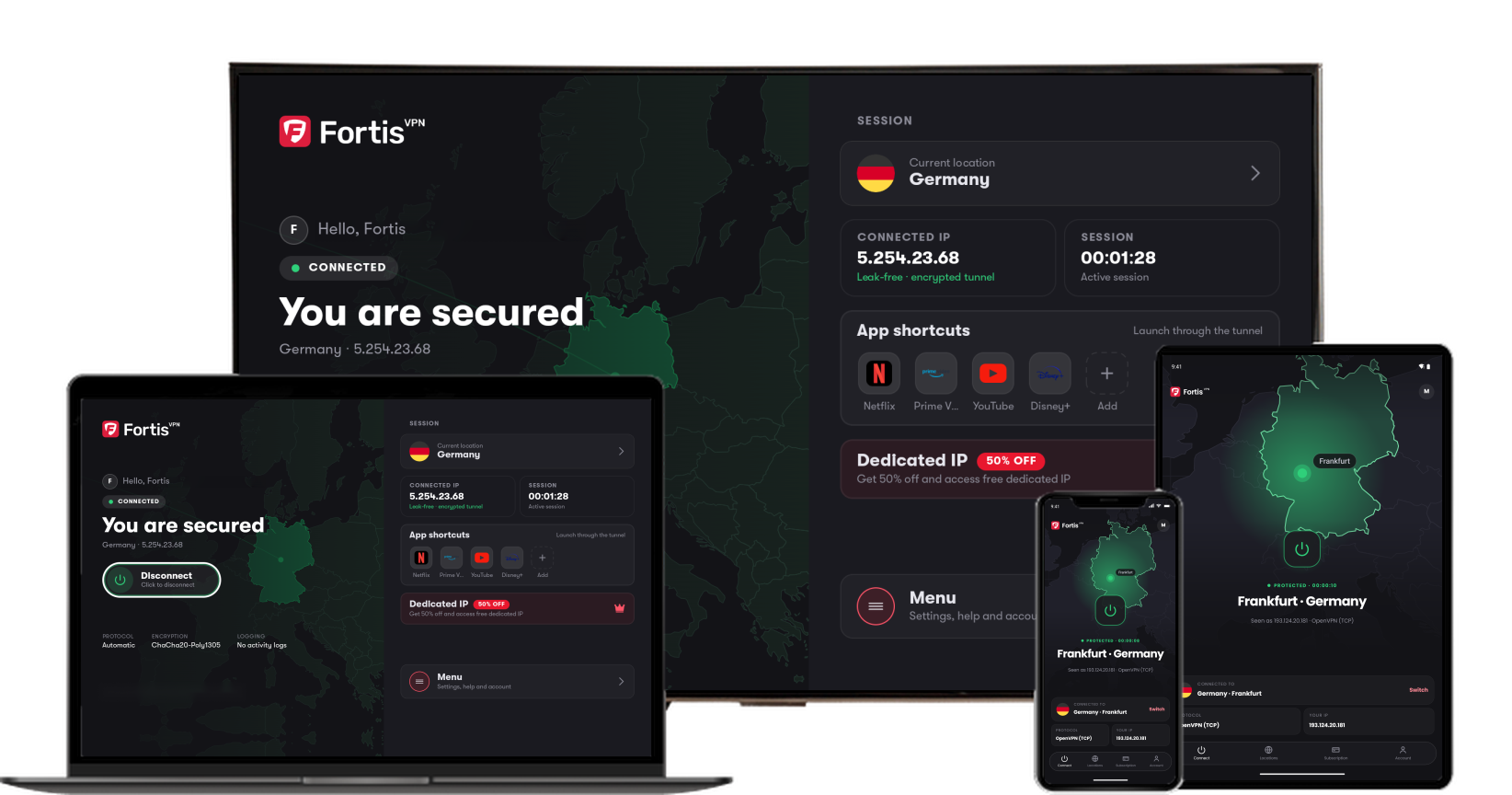
Websites will see you as being in the country you pick.
- 1
Tap Change
On the home screen, find the Connect to card and tap Change. When connected, the same button reads Switch.
- 2
Choose a country
Search for a country or pick one from the list. Fastest available chooses the quickest server for you.
- 3
Choose a city
Pick a city, or Fastest in to let the app choose. Picking a city connects straight away.
- 4
Your new location is set
Back on the home screen, the card shows your new location. Tap the power button if you are not connected yet.
- 5
Reconnect from Recent
The Locations tab keeps a Recent list, so you can return to a favourite place with one tap.
Click the picture to see it larger.
Stuck on a step? Open the chat bubble in the corner of this page or email [email protected]. For problems rather than how-tos, see Troubleshooting.
Fortis for Android · Last updated September 25, 2026
Still need help?
Our team is available 24/7. Tell us your device, app version, and the location you tried.