What Is a DNS Leak and How Do You Fix It?
A DNS leak sends your website lookups to your ISP even with a VPN on. What a DNS leak is, how to test for one, and how to fix it on Windows, Android and TV.

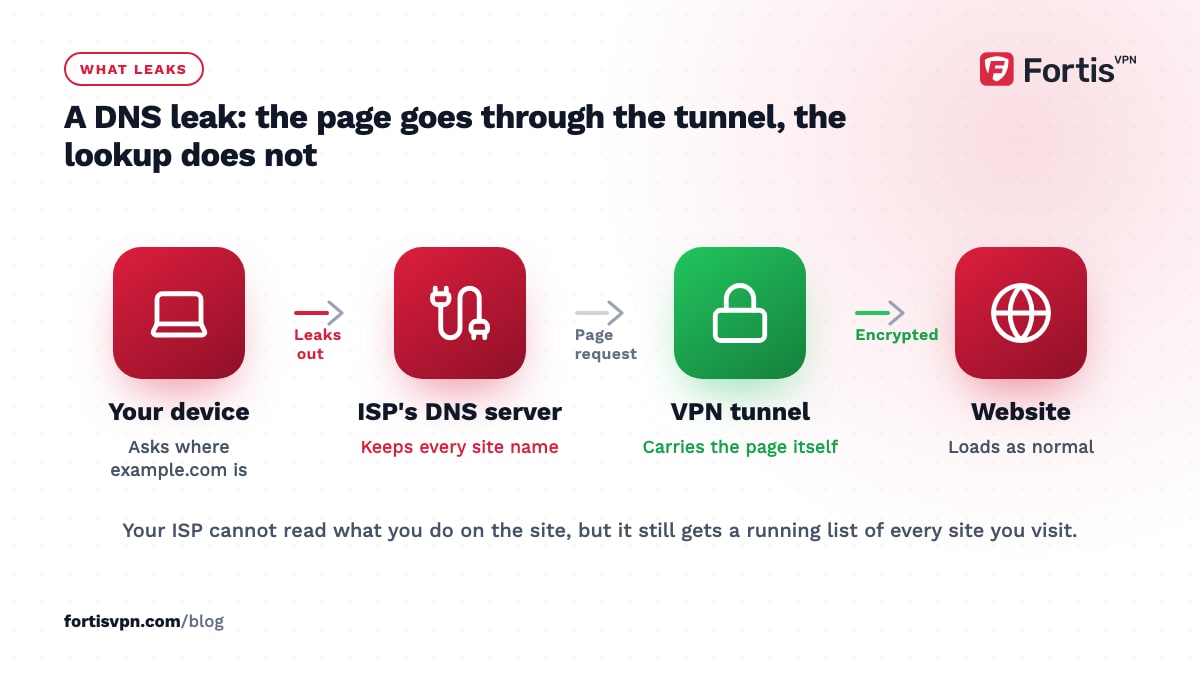
A DNS leak is when your device sends its website lookups outside the VPN tunnel, usually to your internet provider's DNS servers, even though the VPN is connected. What you do on each site stays encrypted, but your ISP still gets a list of every site you visit. The fix is to make every lookup go through the VPN's own resolvers, and this guide shows how to test for a leak and close it.
- A DNS leak exposes the names of the sites you visit, not what you do on them.
- Common causes: browser Secure DNS, manual DNS settings, IPv6, and Windows parallel lookups.
- Test with the VPN connected to a foreign server; any resolver in your home country is a fail.
- Fix it by removing manual DNS, turning off browser DoH, and reconnecting.
What does DNS do?
Every website has a name you can remember, like example.com, and an IP address that computers use. DNS (Domain Name System) is the lookup service that translates one into the other. Before your browser can load a page, it asks a DNS server where example.com lives and gets back an address.
By default those questions go to DNS servers run by your ISP. Your router hands out their addresses when a device joins the network. That is convenient and fast, and it also means your ISP gets a running log of every site name you ask about.
A VPN is supposed to take over this job. When you connect, the app tells your device to send lookups through the tunnel to resolvers the VPN operates. When that hand-over fails, or something bypasses it, you have a DNS leak.
How does a DNS leak happen with a VPN?
A leak is rarely the VPN server's fault. It is the device sending the question the wrong way. The common causes:
- The operating system keeps the ISP's DNS. The VPN adds its resolver, but the system still has the old one listed and sometimes uses it, especially in the moments after connecting or reconnecting.
- Windows parallel lookups. Windows has a feature called smart multi-homed name resolution. It sends each lookup to the DNS servers on every network adapter at once and accepts the fastest reply. The reply from your ISP, over the real connection, can win.
- IPv6. If your ISP gives you IPv6 and the VPN only handles IPv4, the IPv6 DNS server your router advertised stays in use and sits entirely outside the tunnel.
- Manual DNS settings. A DNS address typed into the adapter or router settings years ago, such as a public resolver, overrides what the VPN sets.
- Browser Secure DNS. Chrome, Edge and Firefox can do their own DNS over HTTPS to a provider you chose. That skips the VPN's resolver, even though the queries themselves are encrypted.
- Teredo and other tunnelling. Older Windows IPv6 transition tools can carry lookups outside the VPN. Few home networks still use them, but a leak test will catch it.
- Split tunnelling. If a browser is excluded from the VPN, its lookups are too.
Why does a DNS leak matter?
A DNS leak does not expose what you do on a site. Pages, logins and messages travel through the VPN tunnel, and most sites use HTTPS anyway. What leaks is the list of names: every site, every app's backend, every time.
That list is enough to profile you. It shows the news you read, the bank you use, the health sites you look up, and when you are at home. In countries where ISPs retain or sell browsing data, it goes into a record that the VPN was meant to keep you out of.
A leak also gives away your real region. The resolver that answers your lookups has an address too, and a service can compare where that resolver is with where your web traffic arrives from. Web traffic from a VPN server in one country and DNS from an ISP in another is one of the signals streaming services use to spot VPN users. More on who sees what in what a VPN hides and what it does not.
How do you test for a DNS leak?
Test with the VPN connected, in the browser you use every day.
- Connect to a server in another country. A foreign server makes a leak obvious: any resolver in your home country is wrong.
- Open a DNS leak test page. Search for one; most are run by VPN companies but work with any VPN. It asks your browser to load a few uniquely named resources and records which DNS servers asked about them.
- Read the results. A pass shows one or a few servers belonging to the VPN provider or a hosting company, in or near the server's country. A fail shows your ISP's name or any server in your home country.
- Run it twice. Reconnect and test again, and also test right after switching from WiFi to Ethernet or mobile data, because leaks often appear at network changes.
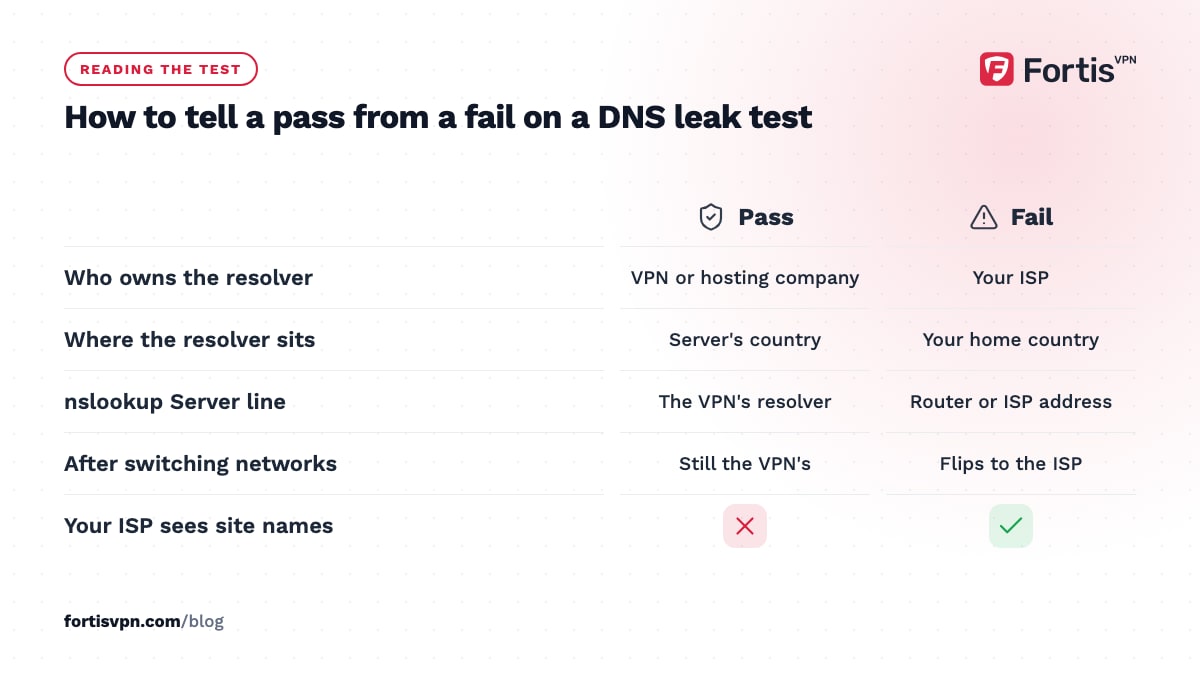
On Windows, a second opinion takes 10 seconds: open Command Prompt, run nslookup example.com, and read the Server line. It should show the VPN's resolver, not your router's address or your ISP's. For the WebRTC and IPv6 checks that belong alongside this one, follow the full guide to checking whether your VPN is working.
How do you fix a DNS leak?
Start with the fix for your platform, then re-test. Reconnect the VPN after every change; most apps only apply DNS settings at connection time.
Windows 10 and 11
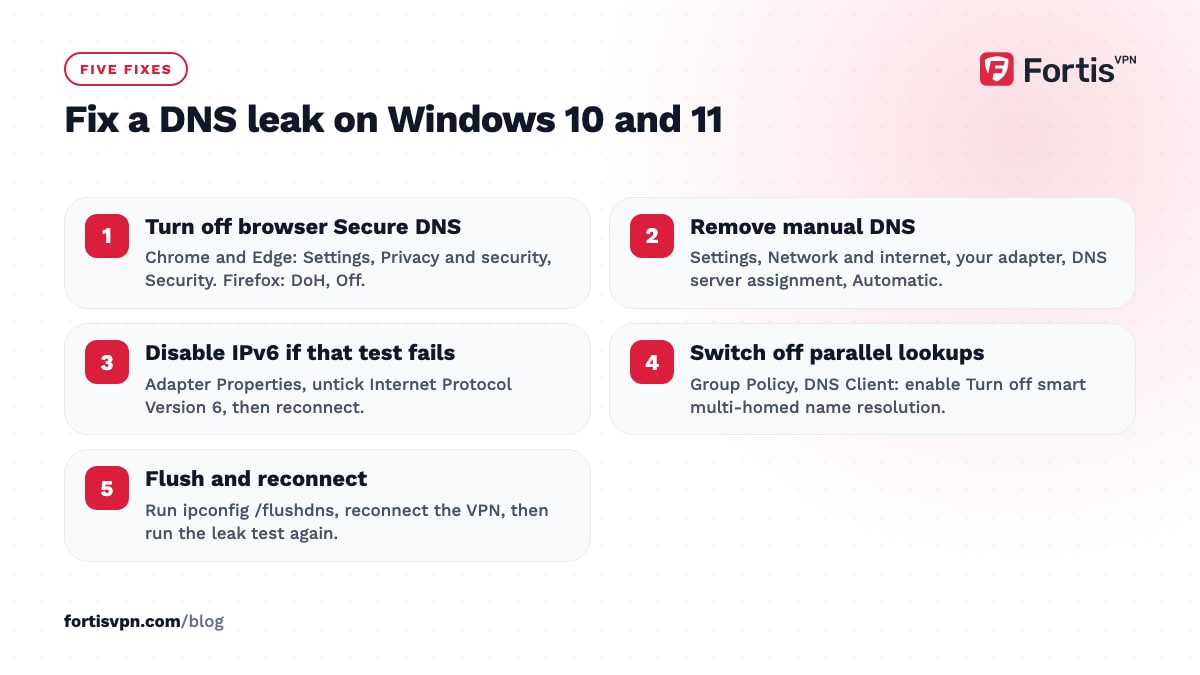
- Turn off browser Secure DNS. Chrome and Edge: Settings, Privacy and security, Security, then turn off Use secure DNS. Firefox: Settings, Privacy and Security, DNS over HTTPS, choose Off.
- Remove manual DNS. Settings, Network and internet, your adapter, DNS server assignment, Edit, and set it to Automatic (DHCP).
- Disable IPv6 on the adapter if the IPv6 test also fails: Control Panel, Network Connections, right-click the adapter, Properties, untick Internet Protocol Version 6.
- Switch off parallel lookups on Pro editions: in the Group Policy Editor, go to Computer Configuration, Administrative Templates, Network, DNS Client, and enable Turn off smart multi-homed name resolution.
- Flush the cache. Run ipconfig /flushdns in Command Prompt, then reconnect the VPN.
Android phones and tablets
- Set Private DNS to Automatic or Off. Settings, Network and internet, Private DNS. A fixed hostname here sends lookups to that provider instead of the VPN's resolver.
- Check split tunnelling. Make sure your browser is not excluded from the VPN.
- Turn on Always-on VPN with Block connections without VPN under Settings, Network and internet, VPN, then the gear icon next to the app. This stops lookups escaping while the VPN reconnects after a network change.
Android TV, Google TV and Fire TV
TV apps have fewer settings to get wrong. Reconnect the VPN app and check that the streaming app you care about is not excluded under split tunnelling. If the TV has a manual DNS set in its network settings, change it back to automatic. If the leak persists, change protocol in the app's settings and reconnect; the Android TV protocol guide shows where the option lives.
Routers
If you run the VPN on the router, set the router's DNS to the VPN's resolvers in the VPN client section, and turn off any option that falls back to the ISP's DNS. Devices behind the router inherit whatever it uses, so one wrong setting leaks for the whole house.
Does HTTPS or DNS over HTTPS stop DNS leaks?
HTTPS does not. It encrypts the page, not the lookup, and your browser still has to find the site's address first. The site name also appears unencrypted in the connection handshake (the SNI field) unless both the browser and the site support Encrypted Client Hello, which a large share of sites still do not as of October 2026.
DNS over HTTPS (DoH) encrypts the lookup itself and sends it to a resolver you choose, so your ISP cannot read it. That is real protection on its own. Combined with a VPN it has two side effects. First, your lookups go to the DoH provider instead of the VPN's resolver, so you have moved trust rather than removed it. Second, a leak test shows the DoH provider's servers, which looks like a leak even though your ISP sees nothing.
If you want one trusted party, turn DoH off and let the VPN handle DNS. If you prefer your DoH provider, keep it on and accept the test result. Either way your ISP is out of the picture. Our article on whether you can be tracked with a VPN covers the other ways a profile gets built.
How FortisVPN handles DNS
The FortisVPN apps for Windows, Android, Android TV and Fire TV send DNS lookups through the encrypted tunnel to resolvers on the VPN side, so your ISP's servers are not used while you are connected. The leaks that remain are the ones outside the app's control: browser Secure DNS, a manual DNS on the adapter, and IPv6 on networks where the ISP provides it. The DNS, WebRTC and IPv6 leak troubleshooting page lists the exact settings to change, and the IPv6 leak test tells you whether the IPv6 step is needed on your network. If a leak survives those steps, 24/7 live chat can work from a screenshot of the test. You can run every test during the 7-day free trial before the first charge.
Frequently asked questions
Is a DNS leak dangerous?
It is a privacy problem rather than a security one. Nobody gets your passwords or page content from a DNS leak. What they get is the full list of sites and services you use, tied to your real ISP account. For most people that is exactly the information they bought a VPN to hide.
Can a DNS leak reveal my location?
Yes, roughly. Your ISP's resolvers sit in your home country, and the address of the resolver that performs a lookup is visible to the service you are reaching. A site that sees your web traffic coming from a VPN server in one country and your DNS coming from another can tell you are using a VPN and where you really are.
Does every VPN have DNS leak protection?
No. A VPN app has to actively replace the system's DNS and keep it replaced across reconnects and network changes. Some free apps and manually configured connections skip this. Even with a good app, settings outside its control, such as browser Secure DNS or manual DNS on a router, can still cause a leak, so test rather than assume.
Does changing my DNS to 8.8.8.8 fix a leak?
It changes who sees your lookups from your ISP to Google, and it does not route them through the VPN. On its own it is a privacy trade, not a fix. With a VPN, a manually set DNS address is often the cause of the leak, because it overrides the resolver the app sets. Set DNS back to automatic and let the VPN assign it.
Can a DNS leak happen on my phone?
Yes. On Android the usual causes are a fixed Private DNS hostname, a browser doing its own Secure DNS, or lookups escaping during the moment the VPN reconnects after a network change. Set Private DNS to Automatic, turn on Always-on VPN with Block connections without VPN, and re-run the test on both WiFi and mobile data.
Last updated: 10 October 2026