How to Set Up a VPN on Windows 11 (App and Manual Setup)
How to set up a VPN on Windows 11 two ways: install a VPN app in five minutes, or add a connection with the built-in client in Settings. Plus fixes and S mode.
The quickest way to set up a VPN on Windows 11 is to install your VPN provider's app, sign in and press Connect; the whole thing takes about five minutes. Windows 11 also has a built-in VPN client under Settings, Network & internet, VPN, but it only speaks IKEv2, SSTP, L2TP/IPsec and PPTP, so it needs server details from your provider and cannot use WireGuard or OpenVPN. This guide covers both routes.
- Method 1: download the Windows app, run the installer, sign in, connect. Works on Windows 10 and 11.
- Method 2: the built-in client needs a server address, a VPN type and sign-in details from your provider.
- Windows 11 in S mode cannot install desktop apps until you switch out of S mode, which is free.
- Turn on the kill switch and launch at sign-in so the VPN is up before anything else opens.
Method 1: install a VPN app on Windows 11
A VPN app handles the protocol, the server list, reconnects and the kill switch for you. These steps follow the FortisVPN Windows app; other apps differ in wording, not in shape. You need an account that is allowed to install programs, so on a work or school PC ask whoever manages it.
- Download the installer. Go to the FortisVPN for Windows page and click Download. Your browser saves FortisVPN-Setup in Downloads.
- Run it and allow it. Double-click the file and click Yes when Windows asks whether to allow the app to make changes. If a blue "Windows protected your PC" screen appears, click More info, then Run anyway, but only for a file from the official site.
- Choose the options. Pick your language, tick Start Fortis VPN with Windows if you want it to open at every boot, then click Next and Install. Setup adds the VPN service and network drivers, which can take a few minutes.
- Sign in. Click Finish with Launch Fortis VPN ticked, then type your email and password.
- Install the network adapter. At first sign-in the app asks to install the Fortis network adapter. Click Install adapter, then Yes at the Windows prompt. This adapter carries the VPN traffic; nothing works without it.
- Connect. Click the big red power button. The screen turns orange while connecting, then green with PROTECTED and the country name. Click Change next to the country to pick another.
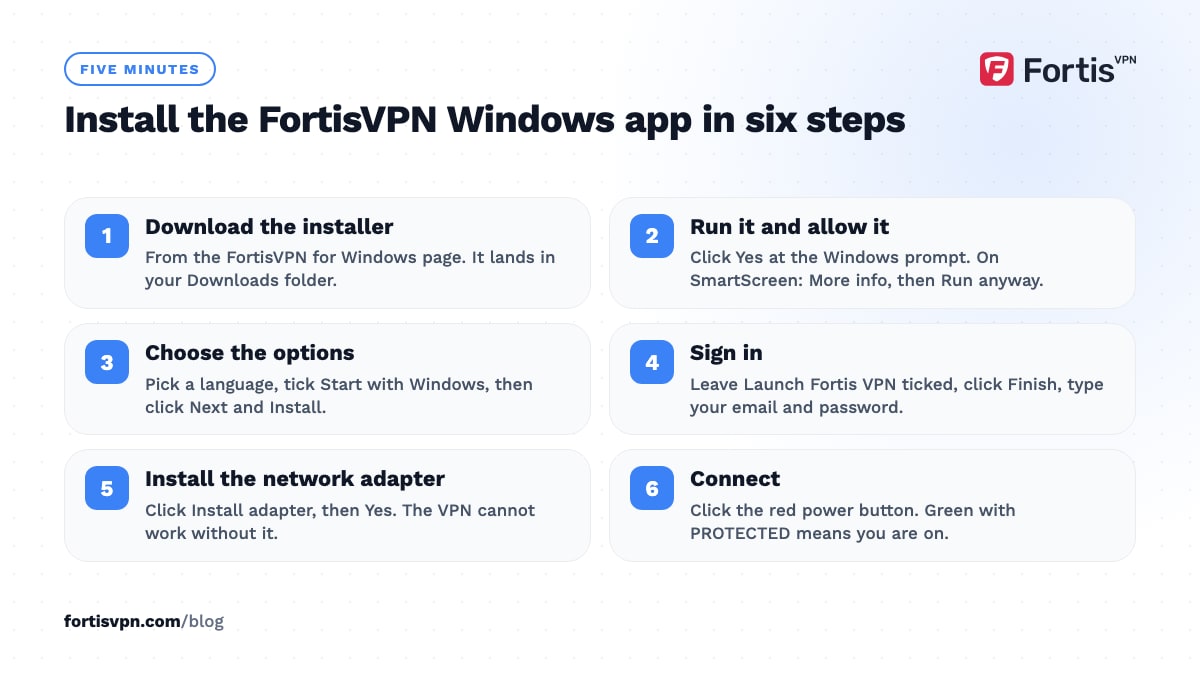
If Windows Defender Firewall or your antivirus asks whether to allow the app through, allow it. Blocking it here is the most common reason a fresh install will not connect. The pictured version of these steps is at install Fortis on Windows.
Settings worth changing in the app
Four settings are worth a look in the first week.
- Kill switch. Under Settings, BEHAVIOUR. If the VPN drops, Windows has no internet until it reconnects, so nothing leaks in between. Set it up with kill switch and startup settings.
- Launch at sign-in and Start minimised to tray. Same screen. The app opens with Windows and waits by the clock with the VPN already on.
- Protocol. Under Settings, PROTOCOL. Automatic suits most networks; WireGuard is fastest; OpenVPN over TCP port 443 gets through hotel, office and school WiFi that blocks the others, because it looks like ordinary HTTPS. See change the VPN protocol.
- Split tunnelling. Choose which apps use the VPN, so a game or a local banking site can skip it while the browser stays protected.
Press Ctrl + Shift + C to toggle the VPN from anywhere, even with the window closed.
Method 2: use the Windows 11 built-in VPN client
Windows 11 ships with a VPN client that needs no extra software. It is the right tool when your provider or employer gives you IKEv2 or SSTP server details, or when you cannot install apps. Before you start, collect the server address, the VPN type, and either a username and password or a certificate or pre-shared key.
- Open the VPN page. Press Windows + I, choose Network & internet, then VPN.
- Click Add VPN. A form opens.
- Fill in the form. VPN provider: Windows (built-in). Connection name: anything you like. Server name or address: what your provider gave you. VPN type: IKEv2 if offered, otherwise Automatic. Type of sign-in info: usually User name and password.
- Save, then connect. The connection appears on the VPN page with a Connect button, and in the Quick Settings panel next to the WiFi and volume icons for later.
Some IKEv2 providers also ask you to install their root certificate first. The client supports only IKEv2, SSTP, L2TP/IPsec and PPTP. WireGuard and OpenVPN are not built into Windows 11, so a provider that uses them needs its own app, or the official WireGuard or OpenVPN clients plus a configuration file. Avoid PPTP: its authentication can be cracked, and Microsoft has deprecated it on the server side.
App or built-in client: which should you use?
Use the app unless you have a specific reason not to. The built-in client is a bare connection: one server per profile, no kill switch, no automatic reconnect, and no way to see which server is fastest.
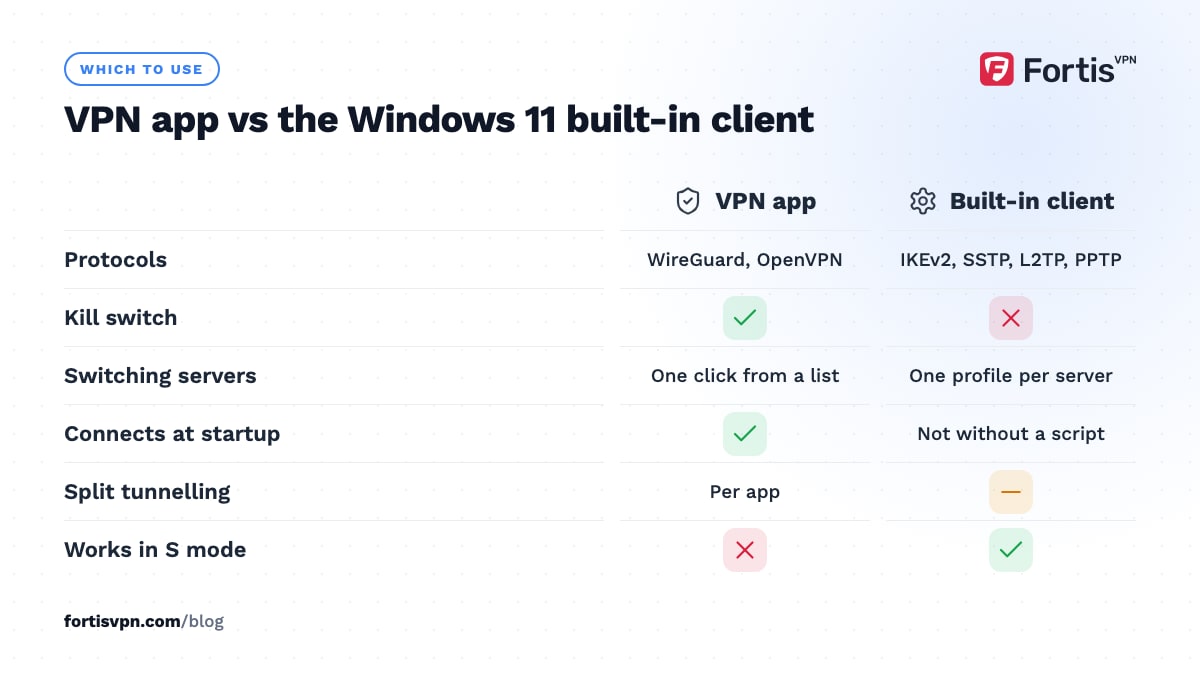
| Criteria | VPN app | Windows 11 built-in client |
|---|---|---|
| Protocols | WireGuard, OpenVPN (UDP or TCP 443), Automatic | IKEv2, SSTP, L2TP/IPsec, PPTP |
| Kill switch | Yes | No |
| Switching servers | One click from a list | One profile per server, added by hand |
| Connect at startup | Yes, with launch at sign-in | Not without scripting |
| Split tunnelling | Per app | Only by editing the adapter's gateway setting |
| Works in S mode | No | Yes |
| Setup time | About five minutes | Two minutes if you have the details |
Pick the built-in client for a company or university VPN that gave you IKEv2 details, a PC in S mode, or a policy that blocks installing software. Pick the app for everything else.
What about Windows 10 and Windows 11 S mode?
Windows 10. The same installer runs on Windows 10, and the built-in client lives at Settings, Network & Internet, VPN, Add a VPN connection, with the same form. Microsoft ended support for Windows 10 in October 2025, so upgrading is worth doing for security updates alone.
S mode. Windows 11 Home in S mode installs apps only from the Microsoft Store, so a VPN installer downloaded from a website will not run. Either use the built-in client with IKEv2 details from your provider, or switch out of S mode: Settings, System, Activation, Switch to Windows 11 Home or Pro, Go to the Store, then Get. Microsoft's page on switching out of S mode confirms it is free and one-way; you cannot go back afterwards.
How to check the VPN is working on Windows 11
Do a 30-second check after your first connection and again after any large Windows update.
- Compare your IP. Open the IP checker with the VPN off and note the address and city. Connect, reload, and both should change to the VPN server's location.
- Check for leaks. Run a WebRTC leak test in your browser. It should show only the VPN address, not your home one.
- Test the kill switch. With the kill switch on, close the app from the tray or disable WiFi for a moment. Websites should stop loading until the VPN is back.
A fuller routine, including DNS and IPv6 checks, is in how to check if your VPN is working.
Fixing common VPN problems on Windows 11
Most Windows VPN faults come from four places: a missing adapter, a blocked installer, a network that blocks VPNs, or a leftover setting after an uninstall.
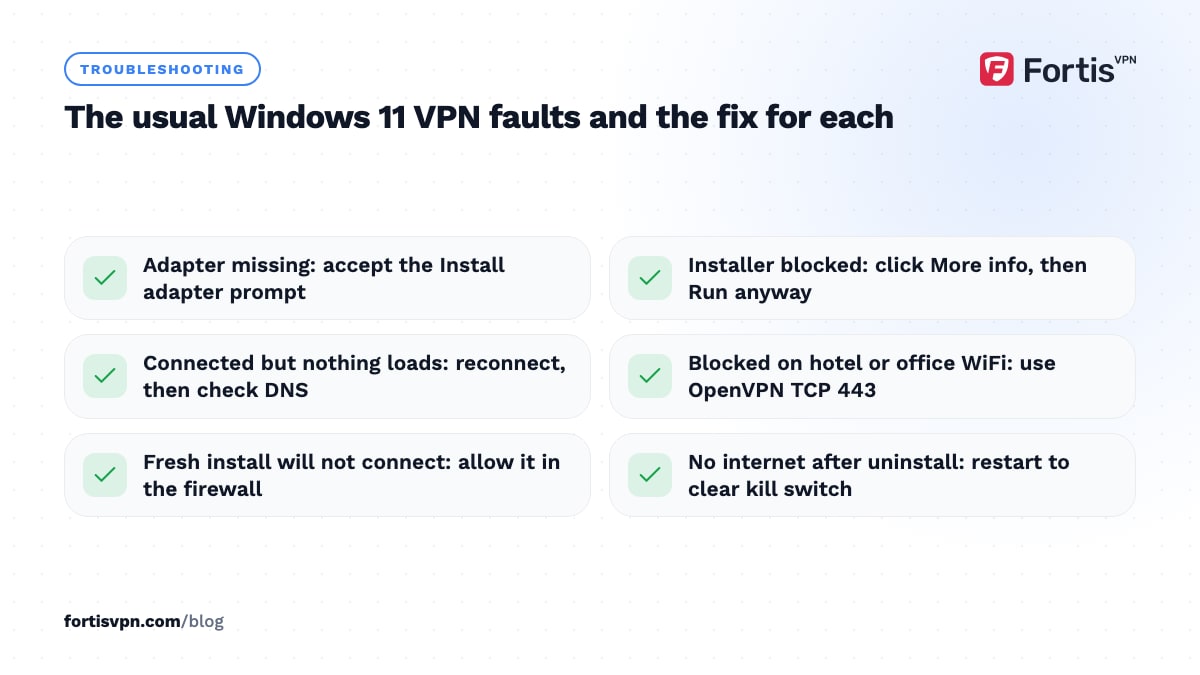
- "Adapter missing" or "driver not installed". Open the app and accept the Install adapter prompt, or switch protocol and try again. If that fails, uninstall, restart and reinstall, which rebuilds the adapter. Steps are in VPN adapter missing on Windows.
- The installer is blocked or stops halfway. Usually SmartScreen, a missed Yes at the permission prompt, an old copy still installed, or antivirus. Each fix is in FortisVPN for Windows will not install.
- Connects, then no websites load. Almost always DNS. Disconnect and reconnect, switch protocol, and if it persists set the network adapter's DNS back to automatic.
- Will not connect on office, campus or hotel WiFi. The network is blocking VPN ports. Switch to OpenVPN over TCP 443 in the app. On the built-in client this shows as error 809: the server did not answer because UDP ports 500 and 4500 are blocked between you and it, and the fix is a different protocol or a different network.
- No internet after uninstalling. The kill switch rule was left behind. Restart Windows; if that does not clear it, reinstall the app, turn the kill switch off, then uninstall again.
Using FortisVPN on Windows 11
The FortisVPN Windows app covers everything above in one place: WireGuard or OpenVPN, a kill switch, launch at sign-in, split tunnelling, and a server list spanning 100+ countries. It runs on Windows 10 and 11, and one account signs in on up to 10 devices at the same time, so a laptop, a phone and a TV share one plan. Get it from the download page, sign in, and connect. Every plan starts with a 7-day free trial: a card is needed, you pay nothing today, a reminder email arrives before the first charge, and cancelling before day 7 costs nothing. If anything in the setup fails, 24/7 live chat support can look at the app's logs with you.
Frequently asked questions
Does Windows 11 have a built-in VPN?
Yes. Windows 11 includes a VPN client at Settings, Network & internet, VPN. It connects to IKEv2, SSTP, L2TP/IPsec and PPTP servers when you type in the server address and sign-in details. It is not a VPN service: Windows gives you the client only, and you still need a provider's server to connect to.
Is the Windows built-in VPN good enough?
For a company VPN with IKEv2 details, yes. For a consumer VPN it is a step down: no kill switch, no WireGuard, one server per profile and no automatic reconnect after a drop. If your provider offers a Windows app, the app is faster to set up and safer when the connection falters.
Why is my VPN not connecting on Windows 11?
Start with the network. Try a different WiFi or your phone's hotspot; if it connects there, the first network blocks VPN ports and OpenVPN over TCP 443 is the fix. On the same network, restart the PC, make sure the VPN adapter is installed, allow the app through the firewall, and check that no second VPN app is running.
Can I start the VPN automatically on Windows 11?
With an app, yes: turn on launch at sign-in and the VPN connects as Windows starts, before your browser or email opens. Pair it with the kill switch so nothing goes out unprotected while it connects. The built-in client has no such switch; you would need a scheduled task that runs the rasdial command, which is more fragile.
Does a VPN work on Windows 11 S mode?
Only through the built-in client, because S mode refuses to run installers from outside the Microsoft Store. Add an IKEv2 connection in Settings using details from your provider. If you want a full VPN app with a kill switch, switch out of S mode first; Microsoft makes this free, but you cannot switch back afterwards.
Last updated: 14 October 2026