How to Use a VPN on a Samsung or LG Smart TV
Samsung Tizen and LG webOS TVs have no VPN apps. Four ways to use a VPN on a Samsung or LG smart TV: streaming stick, router, laptop share or Smart DNS.
Samsung and LG smart TVs cannot run a VPN app. Tizen and webOS have no VPN clients, and FortisVPN does not make one for them. To use a VPN on a Samsung or LG TV you have three realistic options: a streaming stick that runs the VPN app, a VPN on your router, or a VPN shared from a Windows laptop. Smart DNS is a fourth, narrower option for changing streaming regions only.
- Tizen and webOS do not allow device-wide VPN apps, so there is nothing to install on the TV.
- Cheapest fix: a Fire TV or Google TV device with the VPN app, plugged into an HDMI port.
- Whole-home fix: a VPN on the router covers the TV and every other device.
- Smart DNS changes the region a streaming app sees but encrypts nothing.
Why there is no VPN for Samsung or LG smart TVs
A VPN app needs permission to take over the device's network connection and push every packet through an encrypted tunnel. Android and Windows give apps a way to do that. Samsung's Tizen and LG's webOS do not: their apps are sandboxed, web-style apps built for playing video, and neither platform offers a VPN interface to developers.
That is why a Samsung TV VPN search in the Tizen store finds nothing. The handful of apps with "VPN" in the name on LG's webOS store are not real VPN clients either: they typically route a single app's traffic through a proxy, and some fund themselves by selling your TV's bandwidth to other customers.
Neither Samsung nor LG has announced a change to this as of October 2026, so plan around it rather than waiting for an update.
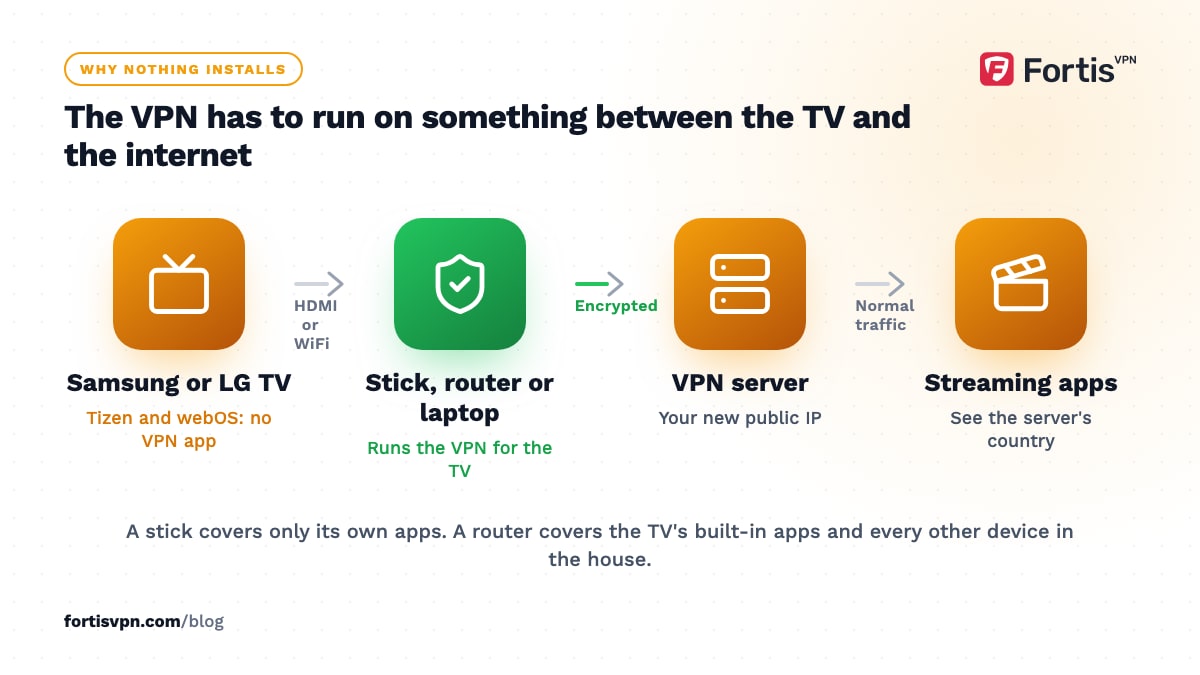
Option 1: plug in a streaming stick with the VPN app
This is the cheapest and least complicated route for one TV, and it suits most people. A Fire TV Stick or a Google TV device plugs into a spare HDMI port, runs the VPN app itself, and becomes the screen you use for streaming. The Samsung or LG smart features stay available on another input.
- Pick a device that has the app. FortisVPN runs on Amazon Fire TV devices from the Amazon Appstore and on Google TV and Android TV devices from Google Play. Among Fire TV sticks, the Fire TV Stick 4K Max and Fire TV Cube run Fire OS, Amazon's Android-based system. The Fire TV Stick 4K Select, the newest Fire TV Stick 4K and the second-generation Fire TV Stick HD run the newer Vega OS, which has a much smaller app catalogue. Check that the FortisVPN app appears in the Appstore on those models before you buy. Google TV Streamer and Nvidia Shield TV are safe choices on the Google side.
- Plug it into HDMI and power. Switch the TV to that input and go through the device's own setup, including WiFi and your Amazon or Google account.
- Install FortisVPN from the device's store. Search for it on the home screen. The Fire TV Stick guide and the Android TV and Google TV guide show every screen.
- Sign in with a code. The app shows a short code; open fortisvpn.com/tv on your phone, enter it, and the stick signs in without any typing on the remote.
- Choose a country and connect. Turn on auto-connect in the app's settings so it reconnects whenever the stick wakes.
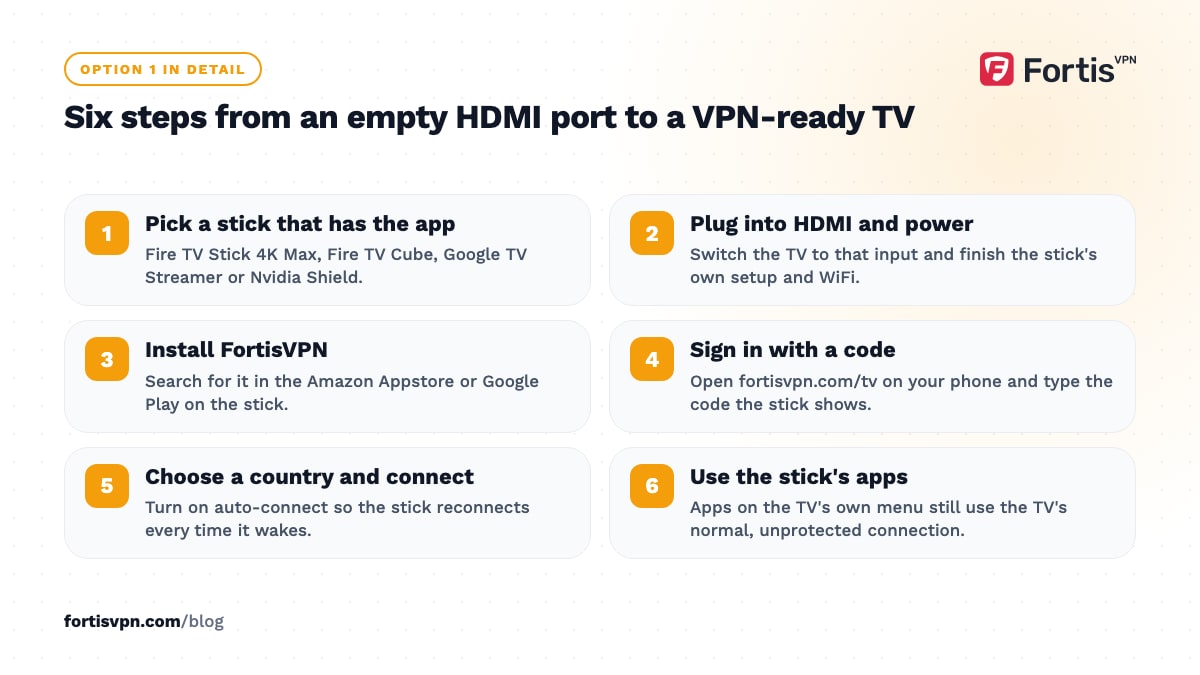
Use the stick's own streaming apps, not the TV's. Apps on the TV's native menu still use the TV's normal, unprotected connection.
Option 2: put the VPN on your router
A VPN running on the router covers every device on your WiFi with nothing installed on the devices themselves: the Samsung or LG TV, phones, consoles and anything else. It is the right choice when you have several TVs, or when you want the TV's own apps to go through the VPN rather than switching to a stick.
The catch is hardware. Routers supplied by ISPs almost never include a VPN client. You usually need a second router with VPN client support (ASUS, TP-Link and GL.iNet models are the common picks) or a travel router placed between the TV and your network. Speed is capped by the router's processor rather than your broadband, which matters for 4K. Most router firmware lets you send only the TV through the VPN while other devices stay direct, which stops the whole household appearing to be abroad.
The full walkthrough, including how to check whether your router qualifies and what to ask FortisVPN support for, is in how to set up a VPN on your router.
Option 3: share a VPN from a Windows laptop
If you own a Windows laptop and want a VPN on the TV tonight with nothing to buy, connect the laptop to FortisVPN and turn it into a WiFi hotspot. The hotspot passes the VPN to the TV.
- Connect the VPN in the FortisVPN Windows app.
- Turn on Mobile hotspot in Settings, Network and internet, and note the network name and password.
- Share the VPN adapter. Open Network Connections, right-click the adapter that appears only while the VPN is connected, open Properties, then Sharing, and allow other users to connect through it, selecting the hotspot connection.
- Join the hotspot from the TV in its network settings. The TV now appears to be wherever the VPN server is.
It works, but the laptop has to stay on and nearby, hotspot WiFi is slower than your router's, and sleep mode breaks it. Treat it as a stop-gap or a hotel-room trick. Phone hotspots do not pass the VPN through, which is why a laptop is required. The detailed version with troubleshooting is in how to share a VPN over a hotspot.
Option 4: Smart DNS on the TV itself
Smart DNS is not a VPN. It is a DNS service that answers the location-check lookups a streaming app makes with addresses in another country, so the app believes you are there. You enter the Smart DNS server addresses in the TV's network settings, where DNS can be switched from automatic to manual on both Samsung and LG sets.
Because it changes only DNS, it does not encrypt anything and does not hide your IP address from the TV's apps or your ISP. It works only for the services the Smart DNS provider has chosen to support, and streaming services detect and block Smart DNS in the same way they detect VPN servers. It is a reasonable fit if region switching is your only goal and you have no spare HDMI port. Smart DNS vs VPN compares the two in detail. FortisVPN's approach to TVs is the stick app and router setup rather than a Smart DNS service.
Which option should you choose?
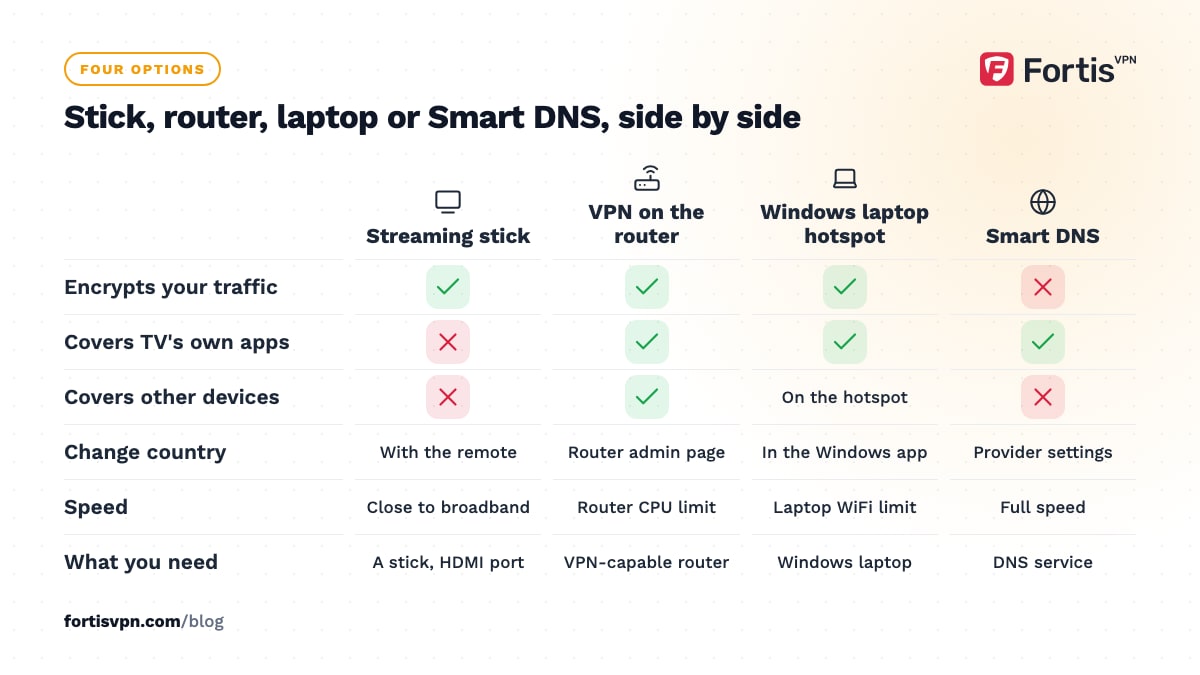
| Option | Cost | Encrypts traffic | Speed | Changing country | Covers other devices | Best for |
|---|---|---|---|---|---|---|
| Streaming stick with the app | Low (one device) | Yes | Close to full broadband speed | Seconds, with the remote | No, that TV only | One TV, least setup |
| VPN on the router | Medium (VPN-capable router) | Yes | Limited by router CPU | Slow, via the router admin page | Yes, whole home | Several TVs, consoles, privacy for everything |
| Windows laptop hotspot | Nothing extra | Yes | Limited by laptop WiFi | In the Windows app | Yes, anything on the hotspot | Occasional use, hotel rooms |
| Smart DNS | Varies by provider | No | Full speed | Depends on the provider's settings | No, per device | Region switching only, no free HDMI port |
If you want privacy as well as region switching, choose the stick or the router. If you only want one TV to see another country's catalogue, the stick wins on price and convenience.
The TV still shows my home region: what to check
- Wrong input or wrong app. On a stick setup, you must use the stick's apps. The TV's built-in apps are not covered.
- Cached region. Netflix and most streaming apps remember where you were when they opened. Force-stop the app on the stick, or power-cycle the TV on a router setup, then reopen it while connected.
- Detected VPN IP. Services flag some server addresses. Switch to another server in the same country or ask support for one that currently works. The detection guide lists the remaining steps.
- DNS or IPv6 leaking on a router setup. If the router hands out your ISP's DNS servers or lets IPv6 bypass the tunnel, the app sees your real location. Set the router's DNS to the VPN's servers and disable IPv6 on the router's WAN side.
- The TV's own store. Samsung and LG tie their stores to the country set on the TV, not to your IP. A VPN changes what a streaming app shows you, not which apps the TV offers.
How FortisVPN fits a Samsung or LG TV
FortisVPN has no app for Tizen or webOS. What it does offer is a Fire TV app and a Google TV and Android TV app, both with code sign-in, auto-connect and split tunnelling. A stick in the TV's HDMI port is a five-minute job. One account covers up to 10 devices at the same time, so the stick, your phone and a Windows laptop share one plan. For router setups, support can supply the configuration details for a WireGuard or OpenVPN client over 24/7 live chat. Every plan starts with a 7-day free trial and comes with a 30-day money-back guarantee. You can start a 7-day free trial, test your TV setup and cancel before day 7 if it does not suit you.
Frequently asked questions
Can I install a VPN on my Samsung TV?
No. Samsung's Tizen platform has no VPN apps and no way for third-party apps to route the TV's traffic. Run the VPN on a streaming stick plugged into the TV, on your router, or on a Windows laptop sharing its connection instead. Smart DNS is a region-only alternative set in the TV's network settings.
Does LG TV have a VPN app?
Not a real one. LG's webOS store lists a few apps that use the word VPN, but they are proxy or bandwidth-sharing tools rather than device-wide VPN clients, and they do not encrypt the TV's traffic. The dependable routes are the same as for Samsung: a stick, a router or a laptop share.
Is there a free VPN for a smart TV?
Free VPN apps exist for Fire TV and Android TV sticks, but they tend to cap data, throttle video, show ads and in some cases log or sell your activity. Streaming at TV resolution burns through a free data cap in an evening. A paid trial you can cancel is a safer test than a free app.
Can I use a VPN on my TV without a router?
Yes. A streaming stick running the VPN app needs no router changes, and sharing a VPN from a Windows laptop hotspot also bypasses the router. Only option 2 touches your router. Most people with one TV go for the stick, because it is quick, costs little and lets you change country with the remote.
Will a VPN on my router slow down my TV?
It can, because encryption runs on the router's processor, which is far weaker than a laptop's. Entry-level routers may struggle with 4K streams; routers built with VPN use in mind handle them. If you see buffering, switch the router to WireGuard, pick a nearby server, or move the TV to a stick-based setup instead.
Last updated: 11 October 2026