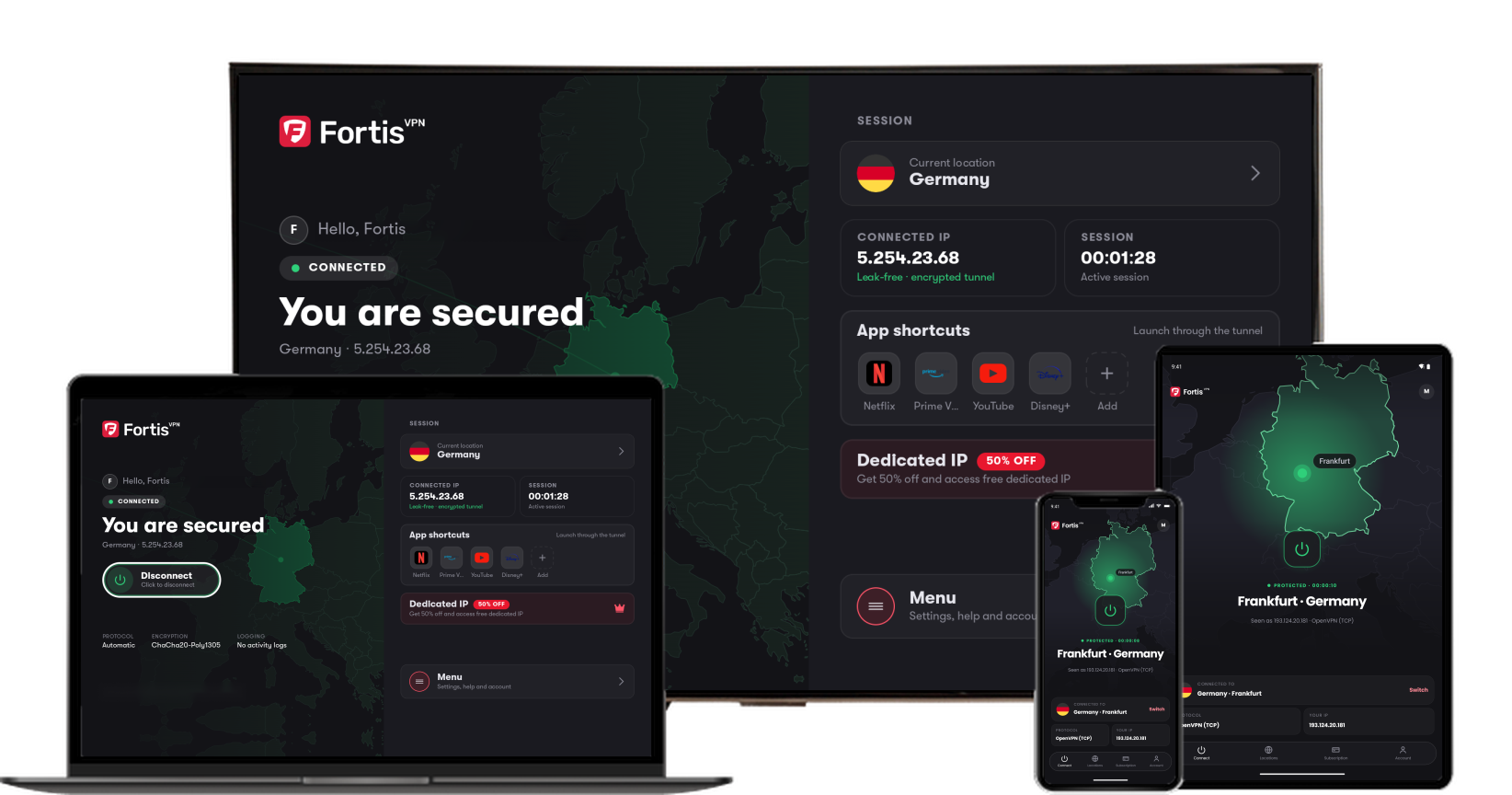
A protocol is the method Fortis uses to build the protected connection. You normally never need to change it. Change it only when Fortis will not connect or is slow.
- 1
Open Settings
Click Settings in the menu on the left. The three choices are under PROTOCOL.
- 2
Click the one you want
- Automatic: most of the time. Fortis picks the fastest one that works on your network.
- WireGuard: the best speed.
- OpenVPN: when WireGuard will not connect. This often happens on hotel, office and school Wi-Fi.
- 3
Connect again
The change is used the next time you connect. If the VPN is on, turn it off and on again. The PROTOCOL box on the Connect screen shows which one is in use.
Step 1 of 3
Click the picture to see it larger.
Fortis for Windows · Last updated September 30, 2026
Still need help?
Our team is available 24/7. Tell us your device, app version, and the location you tried.