How to Use a VPN on PS5 and Xbox: 3 Ways That Work
A VPN for PS5 or Xbox cannot be installed on the console. Run it on your router, share it from a Windows PC or use Smart DNS. Steps, NAT type notes and limits.
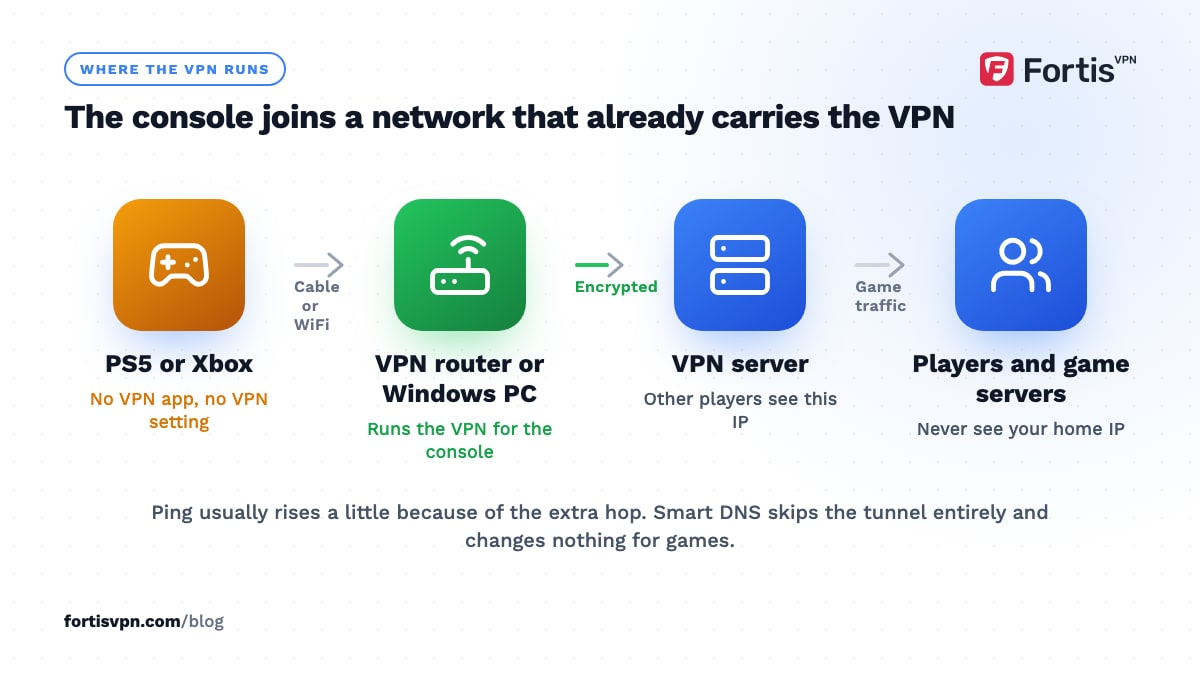
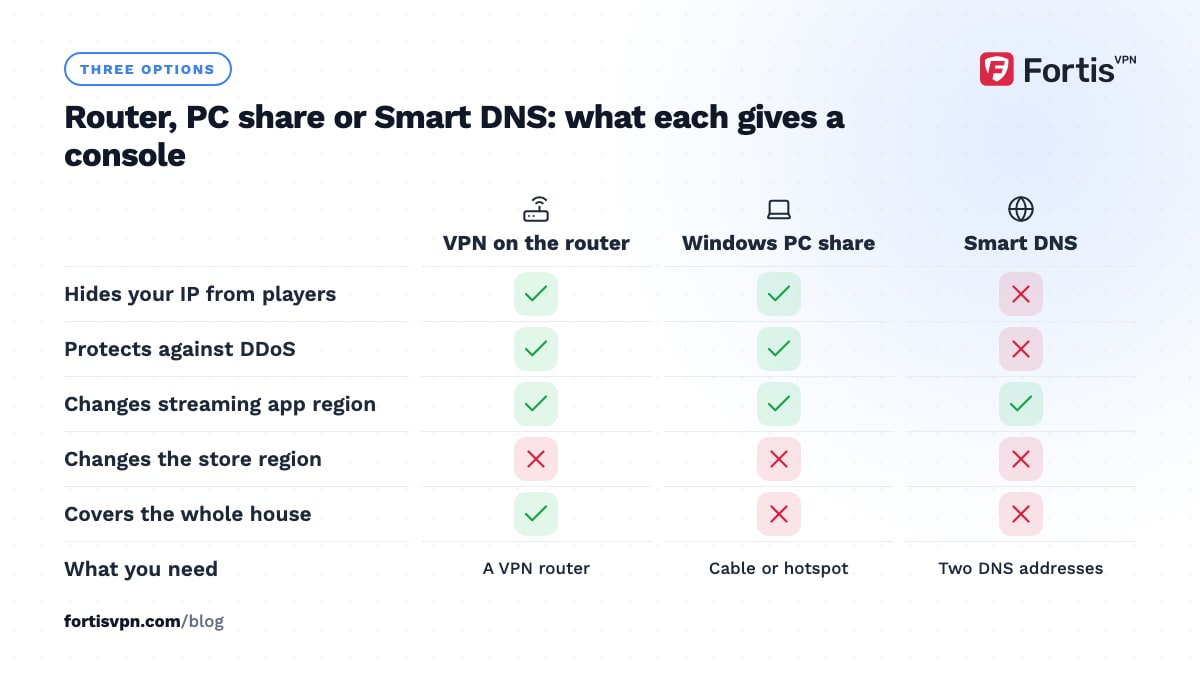
You cannot install a VPN app on a PS5 or an Xbox, so a VPN for PS5 or Xbox always runs somewhere else. The three places that work are your router, a Windows PC that shares its connection with the console, and Smart DNS in the console's network settings for streaming apps only. Which one to pick depends on whether you want privacy and protection from DDoS attacks, or only a different region in a streaming app.
- Consoles have no VPN apps; the VPN lives on the router, a PC or in the DNS settings.
- A router VPN covers the console with no cables; a PC share needs an Ethernet cable or a hotspot.
- A VPN hides your home IP from other players but rarely lowers ping.
- Store regions are tied to your account, not your IP; a VPN alone does not change them.
Why there is no VPN for PS5 or Xbox in the console stores
Sony and Microsoft run closed stores with no category for networking tools, and neither console gives third-party software the system-level access a VPN client needs to reroute traffic. That is as true of the PS5 and the Xbox Series X and Series S as of every earlier generation, and nothing suggests a change in 2026. What the consoles do allow is control over the network connection itself: you choose which WiFi or cable to use, and you can set DNS servers by hand. Every working method builds on one of those two openings.
What a VPN can and cannot do for console gaming
- It hides your IP from other players. In games and voice chats that connect players directly rather than through a server, other people's software can see your public IP address. That is how DDoS attacks on streamers and ranked opponents start. With a VPN, they see the VPN server's address instead. VPN for Fortnite, PUBG and Call of Duty covers the games where this matters most.
- It changes the region streaming apps see. Netflix, YouTube and the other media apps on the console follow your IP. Connect to a server in the right country and the catalogue changes. If the service still detects a VPN, switch to another server in that country or ask support for one that currently works.
- It can route around ISP throttling of game downloads or video, if your ISP does that.
- It will not lower your ping in most cases. A VPN adds a hop, so latency usually rises slightly. The exception is an ISP with a bad route to a particular game server, where the VPN's route happens to be shorter. VPN for gaming explains when that happens.
- It does not change your account's store region. More on that below.
Option 1: VPN on your router
This is the cleanest method: the router connects to the VPN and the console connects to the router as normal, with no cables to a PC and nothing to switch on before a session. It also covers everything else in the house.
You need a router whose firmware includes a VPN client. ASUS, TP-Link, GL.iNet, OpenWrt and DD-WRT firmware all offer one; ISP-supplied routers almost never do, so most people add a second router or a small travel router and connect the console to that. Use WireGuard if the router supports it, because the router's processor is the bottleneck for large console downloads. Set the firmware's policy routing so only the console goes through the tunnel, or every phone in the house appears abroad.
The full process, including how to check your router and what to ask FortisVPN support for, is in how to set up a VPN on your router. Once it is running, the console needs no changes.
Option 2: share a VPN from a Windows PC
This is the no-router option for both consoles: run the VPN on a Windows PC near the console and pass it on over an Ethernet cable (faster and more reliable) or a WiFi hotspot (no wiring).
- Connect the VPN in the FortisVPN Windows app. Choose the country you want the console to appear in.
- Create the link to the console. For a cable, run it from the PC's Ethernet port to the console's LAN port. For WiFi, open Settings, Network and internet, Mobile hotspot, choose what to share from, and turn it on; note the network name and password.
- Share the VPN adapter. Press the Windows key and R, type ncpa.cpl and press Enter. Right-click the adapter that exists only while the VPN is connected and choose Properties. On the Sharing tab, tick the box that allows other network users to connect, pick the Ethernet adapter or the hotspot connection in the drop-down, and click OK.
- Connect the console. On PS5, go to Settings, Network, Settings, Set Up Internet Connection and pick the cable or the hotspot name. On Xbox, go to Settings, General, Network settings and do the same. Leave IP and DNS on automatic; the PC hands them out.
- Test it. Open a streaming app on the console and check the catalogue, or run the console's internet connection test.
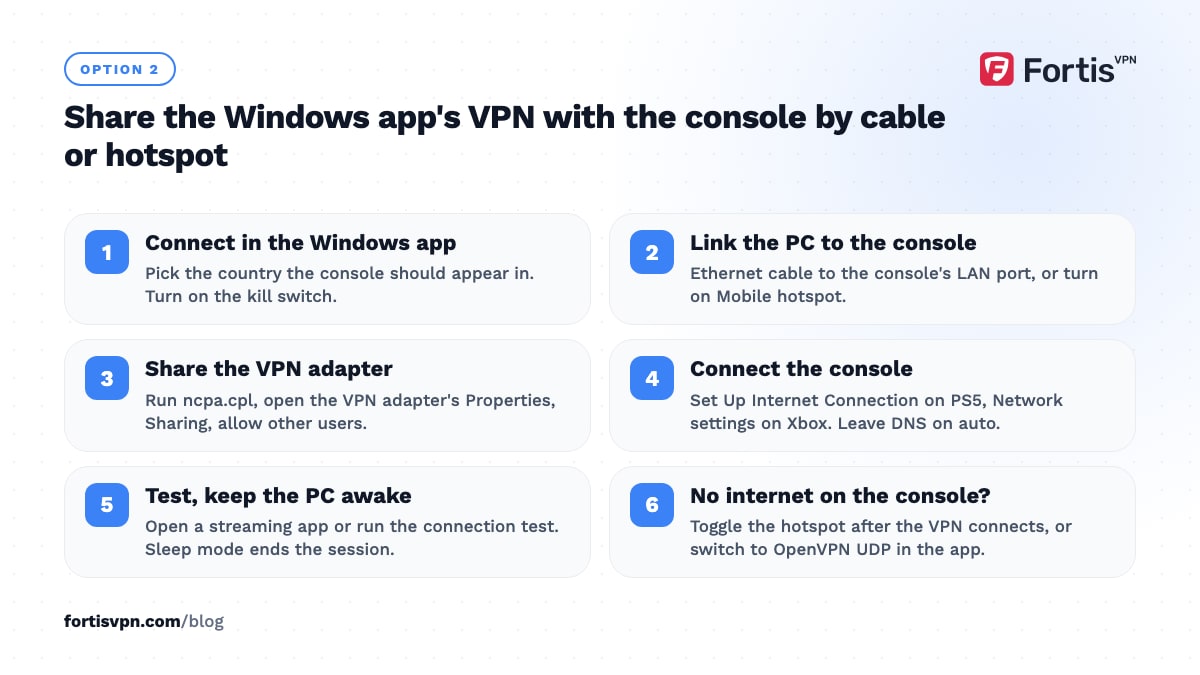
If the console gets no internet, turn the hotspot off and on after the VPN connects, or switch the protocol in the Windows app to OpenVPN UDP, because some adapter types do not share well. Keep the PC awake during play: sleep mode ends the session. The hotspot sharing guide has the full troubleshooting list. A useful side effect: with the kill switch on in the Windows app, a VPN drop cuts the console's internet rather than exposing your real IP.
Option 3: Smart DNS for streaming apps only
Smart DNS is a DNS service that answers streaming apps' location checks with addresses in another country. You type two DNS addresses into the console's network settings and the apps believe you are elsewhere. There is no encryption and your IP does not change, so it does nothing for games, DDoS protection or privacy; it is purely for streaming apps.
To set it: on PS5, go to Settings, Network, Settings, Set Up Internet Connection, select your connection, open Advanced Settings and set DNS to Manual. On Xbox, go to Settings, General, Network settings, Advanced settings, DNS settings, Manual. Enter the addresses from your Smart DNS provider. Streaming services block Smart DNS the same way they block VPN servers, so it is not more reliable, only lighter. Smart DNS vs VPN compares them. FortisVPN's approach for consoles is the router or the PC share rather than a Smart DNS service.
NAT type, party chat and other problems after connecting
NAT type drops to 3 or Strict. A VPN adds a layer of network address translation, so consoles often report NAT Type 2 or 3 on PS5 and Moderate or Strict on Xbox. Check it under Settings, Network, Connection Status on PS5, and Settings, General, Network settings on Xbox. Moderate usually plays fine; Strict can block party chat and matchmaking with some players. On a router setup, enable UPnP on the VPN router and avoid double NAT (bridge mode on the ISP router, or the VPN router in its DMZ). Microsoft's NAT troubleshooting guide walks through the Xbox side. You cannot forward ports through a shared VPN IP, so Open or Type 1 is rarely achievable behind a VPN.
Party chat fails or drops. Same cause. Try a different VPN server, switch to WireGuard and confirm UPnP is on; if chat matters more than the VPN for a session, turn the VPN off for it.
Downloads are slow. On a router, the CPU is the limit: use WireGuard and a nearby server. On a PC share, the PC's WiFi or an old Ethernet port is the limit. Pause the VPN for large downloads if speed matters more than privacy for that hour.
A streaming app still shows my country. Close the app fully on the console and reopen it, then try another server in the same country. The detection guide lists the remaining checks.
Can you change your PS5 or Xbox region with a VPN?
No, not on its own, and this is where people get burned. Store region, pricing and release timing follow your account's country, not your IP address.
PlayStation. Sony does not let you change the country on an existing account. People who want another region's store create a second account registered to that country, and Sony's terms require the details you give to be truthful; they also say available digital products depend on where you live, and they let Sony restrict or terminate accounts that break the rules. A VPN only changes the IP, so it neither fools the store nor protects an account registered with a false address. As of October 2026, Sony's terms do not mention VPNs, but nobody can promise a region-shifted account will never be actioned.
Xbox. Microsoft lets you change your account's country from the Microsoft account page, but only once every three months; your balance does not move with you, and Game Pass and other purchases may stop working in the new region, per Microsoft's own guidance. Its services agreement also bars circumventing restrictions on access to, usage or availability of its services. A VPN is not needed for the official change; using one to buy from a store you are not eligible for is the part that can bite.
Use the VPN for what it does well on consoles: protection from DDoS, privacy from your ISP and region changes in the streaming apps. This article is general information, not legal advice.
Using FortisVPN with a console
FortisVPN has no app for PS5 or Xbox, and no VPN does. What it provides is a Windows app with a kill switch, which makes the PC-share method safe, plus standard WireGuard and OpenVPN support for router setups; ask on 24/7 live chat or via the contact page for the configuration details for your router. One account covers 10 devices at the same time, and a router counts as one however many consoles sit behind it. Every plan comes with a 7-day free trial and a 30-day money-back guarantee, so you can start a 7-day free trial, set up the router or the PC share, and check your NAT type and party chat before you are charged.
Frequently asked questions
Can you put a VPN directly on a PS5?
No. The PS5 has no VPN apps and no system setting for one. It can only join a network that already carries a VPN: a VPN router, or a Windows PC sharing its VPN connection by cable or hotspot. Smart DNS can be entered directly on the PS5, but it is not a VPN and only affects streaming apps.
Does a VPN lower ping on Xbox?
Usually not. The VPN adds a hop, so ping typically rises by a few milliseconds. It can fall when your ISP routes badly to a specific game server and the VPN's path is better, but that is luck, not a feature. If you try it, pick a server close to the game server, not to you.
Will a VPN get me banned on PlayStation?
Using a VPN on your home network is not something Sony's terms mention, and plenty of people play through one. The risk comes from accounts registered to a country you do not live in, which the terms prohibit, and from store purchases made that way. Nobody can promise such an account will never be restricted.
Can I change my PS5 region with a VPN?
No. The PlayStation Store follows your account's registered country, which cannot be changed, so a VPN alone shows you the same store. Changing region means a separate account registered in that country, with its own purchases and wallet. A VPN does change the region that streaming apps on the PS5 see.
Does a VPN stop DDoS attacks on a console?
It stops the common kind. Attackers need your public IP, which they harvest from peer-to-peer game sessions or chat. Behind a VPN they get the VPN server's address, and the attack hits infrastructure built to absorb it. It cannot stop an attack against the game's own servers, which affects everyone regardless.
Last updated: 3 October 2026