How to Change Your Netflix Region With a VPN (2026 Guide)
Learn how to change your Netflix region with a VPN in 2026: pick a server in the right country, reload Netflix, and fix it when your home library still shows.
To change your Netflix region, connect to a VPN server in the country whose library you want, then close and reopen Netflix. Your account, profiles and billing stay exactly as they are; only the catalogue changes to match the country of your new IP address. That is how people watch Netflix from another country, and if Netflix still shows your home library or a proxy error, the fixes further down usually sort it out.
- Netflix picks your library from your IP address, so a VPN server in another country changes what you see.
- Android, Windows and TV apps change region directly; Samsung and LG TVs need a router or streaming stick.
- Netflix's terms say to watch mainly in your sign-up country; it blocks the stream rather than closing accounts.
- Nothing is guaranteed: if Netflix detects the VPN, switch to another server in the same country.
Why does Netflix show different titles in each country?
Netflix licenses most films and series from studios one territory at a time. A show it streams in the UK may belong to a different broadcaster in Germany, so Netflix cannot show it there. Netflix originals are the exception: they usually appear in every country Netflix operates in, give or take local rating rules. That is why the Netflix library by country looks so different from place to place.
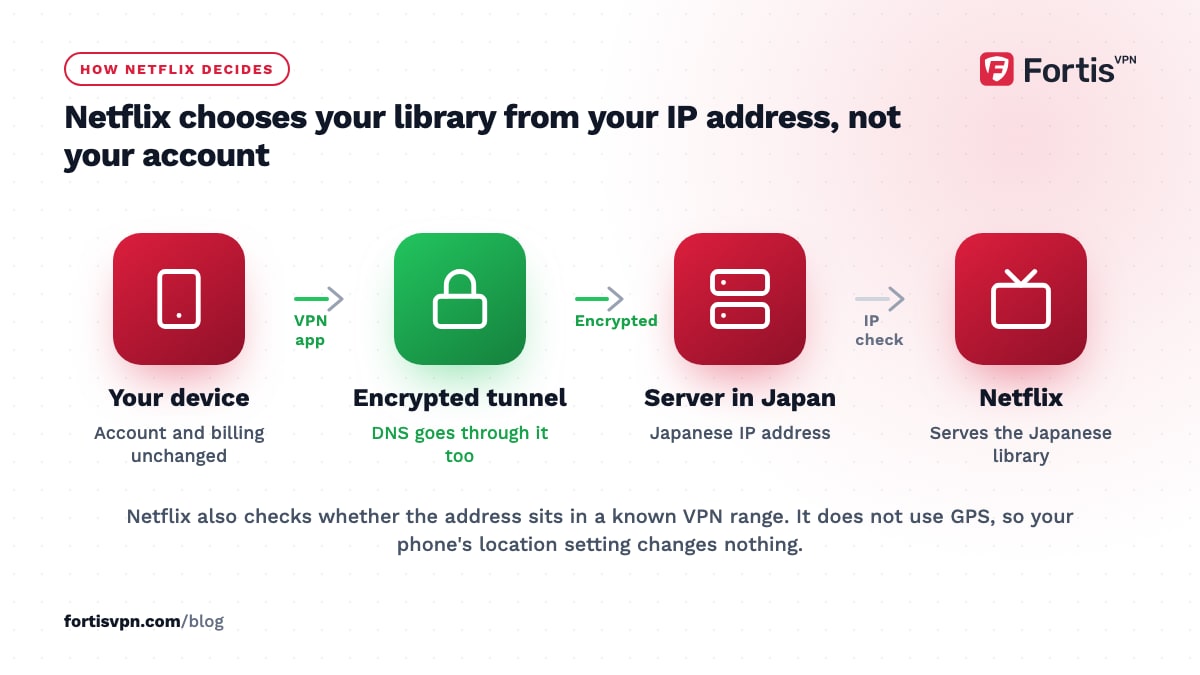
To decide which library you get, Netflix looks at the IP address your device connects from. It also expects your DNS requests to come from the same country and checks whether the address belongs to a known VPN or proxy range. Netflix states that it does not collect GPS data to place your devices, so your phone's location setting is not what decides the catalogue.
That is why a VPN works at all. When you connect to a server in Japan, Netflix sees a Japanese IP address and serves the Japanese catalogue. The moment you disconnect, you are back to your home library.
How to change your Netflix region step by step
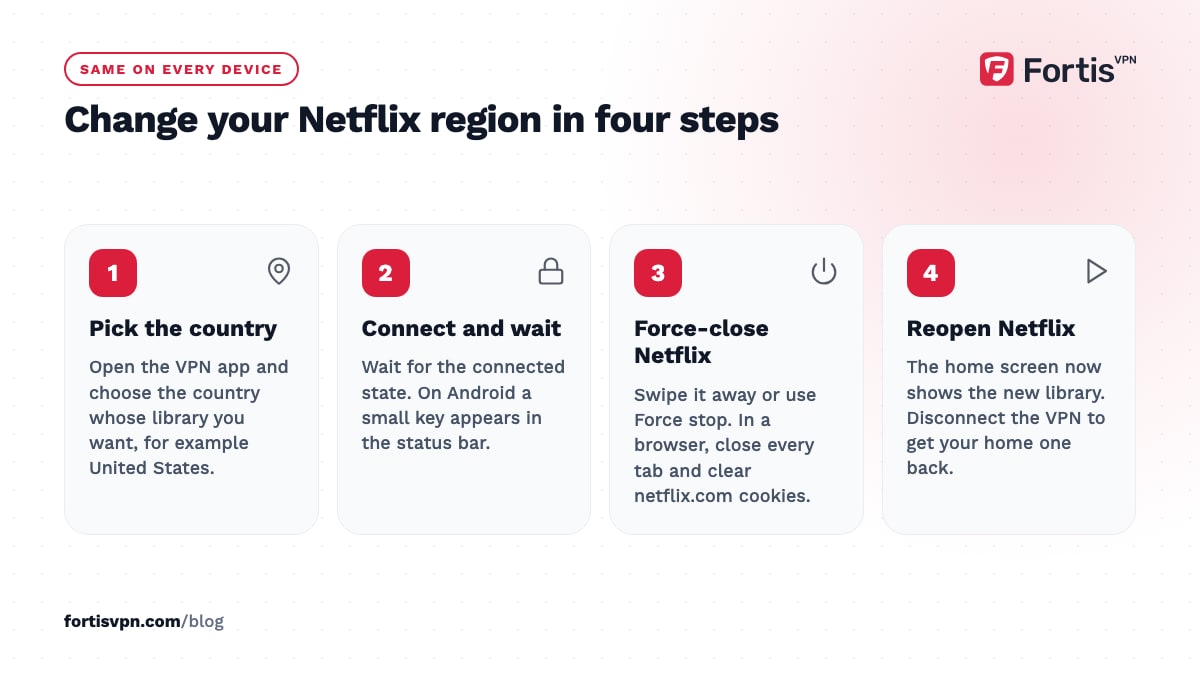
The process is the same on every device: connect the VPN to the target country, then fully close and reopen Netflix so it checks your location again. Here is how that looks on the devices people use most.
Android phone or tablet
- Open your VPN app and pick a country. In FortisVPN, tap the location list and choose, for example, United States.
- Connect and wait for the key icon. Android shows a small key in the status bar when the tunnel is up.
- Force-close Netflix. Swipe it away from recent apps, or go to Settings, Apps, Netflix, Force stop.
- Reopen Netflix. The home screen should now show the new library.
Windows laptop or desktop
- Connect the VPN to the target country. Open the Windows app, choose the country and wait for the connected state.
- Close every Netflix tab. Then clear cookies for netflix.com, or open a private window, so the site does not reuse an old location.
- Load netflix.com again. Sign in and check the library.
Android TV, Google TV or Fire TV
- Install the VPN app on the TV. It is in Google Play on Android TV and Google TV, and in the Amazon Appstore on Fire TV.
- Sign in and choose the country. FortisVPN lets you sign in with a short code at fortisvpn.com/tv instead of typing a password with the remote.
- Connect, then restart the Netflix app. On most TVs, press and hold the Home button, pick Netflix and choose Quit or Force stop, then open it again.
Full instructions for TV devices are in our Android TV and Google TV setup guide.
Samsung, LG and other smart TVs
These TVs cannot run VPN apps. Plug in a Fire TV Stick or Google TV device and run the VPN there, or put the VPN on your router. The router route is slower and switches the whole home at once, so a stick is the simpler choice for one TV.
Which Netflix region should you choose?
Pick the country that has the title you want, not the one with the longest list. Catalogue sizes change every month as licences start and end, so a "biggest library" ranking is out of date within weeks.
- Travelling abroad and want your usual shows: connect to your home country.
- Chasing a specific film: find out which countries currently carry it, then connect there.
- Streaming in 4K: choose a country close to you, because distance adds latency and buffering.
- Wherever you connect, Netflix shows that country's age ratings and may hide titles your parental controls block.
Netflix's own page on using Netflix outside your home notes that My List and Continue Watching entries may disappear while you are in another library, and that downloads made at home may not play abroad. They come back when you return to your home region. If you travel often, our guide to streaming while travelling covers the other services too.
Can you change your Netflix region without a VPN?
Not in any lasting way. The library follows the location of your IP address, so the only VPN-free method is to be in the other country. You cannot pick a country in your account settings either; Netflix's help page on moving says that changing country means cancelling, waiting for the billing period to end, and restarting in the new country.
Smart DNS is the one alternative worth knowing. It reroutes only the location-check requests, does not encrypt anything and does not hide your IP address, but it runs on devices that have no VPN app. We compare the two in Smart DNS vs VPN for streaming. Netflix blocks known Smart DNS services as readily as it blocks VPN ranges, so it is not a reliable shortcut.
One narrow exception: EU residents keep their home catalogue on temporary trips inside the EU, because EU portability rules require paid services to follow the subscriber. That covers holidays and business trips, not a move.
Is changing your Netflix region allowed?
People ask whether Netflix allows VPNs, and the short answer is that its terms do not. As of October 2026, the Netflix Terms of Use (last updated 10 April 2026) say you may access Netflix content "primarily within the country in which you have established your account" and only in locations where Netflix offers the service and has licensed the content. Watching another country's library through a VPN sits outside that wording.
In practice Netflix enforces this technically rather than through account action. If it recognises your IP address as a VPN or proxy, it refuses to play the video and shows "You seem to be using a VPN or proxy" with a code such as M7111-5059 or E106. Its help pages tell you to turn the VPN off; they do not describe suspensions or bans.
Two newer rules matter. Netflix says VPNs are not supported at all on ad-supported plans or for live events, so an ads plan may be blocked even when a server works for everyone else. And the Netflix Household rule ties your account to the devices on your home internet connection, so a phone or laptop abroad may be asked to verify with a one-time code. That check is about sharing, not region, and the code expires after 15 minutes. This article is general information, not legal advice.
Netflix still shows my home library: 7 fixes
If your Netflix VPN is not working, work through these in order and test Netflix after each one. Most cases are solved by the first three.
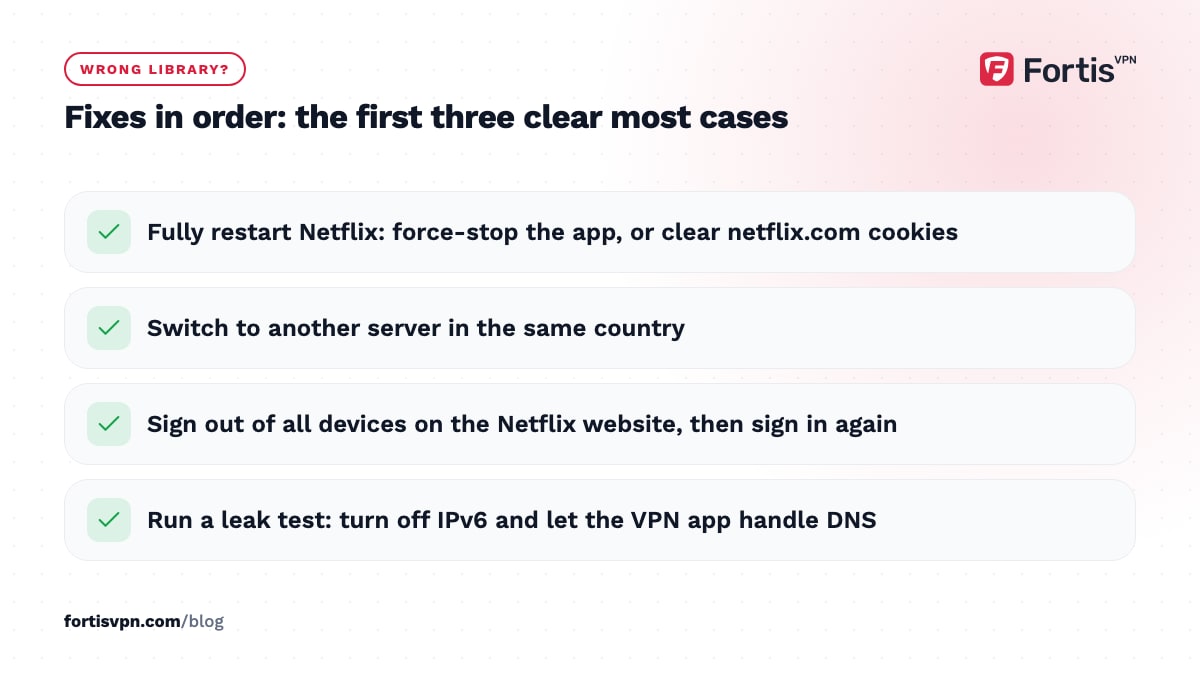
- Fully restart Netflix. A background app keeps the old session. Force-stop it on Android and TV, or clear netflix.com cookies in a browser.
- Switch to another server in the same country. Netflix tends to block IP ranges one at a time, so a neighbouring server often works when the first does not.
- Sign out of all devices. In Account settings on the Netflix website, choose Sign out of all devices, then sign in again with the VPN connected.
- Check for leaks. If an IP checker shows the VPN country but Netflix disagrees, your DNS or IPv6 traffic may be bypassing the tunnel. Turn IPv6 off on the device and make sure the app, not the system, handles DNS.
- Try the app instead of the browser, or the reverse. Browser extensions, Smart DNS settings and manual proxy settings all confuse the check. Turn them off.
- Change VPN protocol. Switch to WireGuard for speed, or OpenVPN TCP if a network is interfering, then reconnect.
- Restart the device and router. This clears cached DNS answers that still point to your home country.
If you see the proxy message instead of the wrong library, follow our Netflix proxy error guide, which covers the detection side in more detail, or the general streaming service detects VPN troubleshooting page.
Changing Netflix region with FortisVPN
FortisVPN has servers in 100+ countries, so the usual Netflix regions are a tap away on Android, Windows, Android TV, Google TV and Fire TV. Connect to a server in the right country; if Netflix still detects a VPN, switch to another server in that country or ask support for one that currently works. Live chat is open 24/7 for exactly this question.
Split tunnelling on Android and the TV apps lets Netflix use the VPN while your banking app stays on the local connection, and one account covers 10 devices, so the TV, the phone and the laptop can each sit on a different region. You can start a 7-day free trial, test your region tonight, and cancel before day 7 if it does not suit you. The Android TV and Google TV app page lists supported TVs.
Frequently asked questions
Does Netflix ban you for using a VPN?
No. Netflix's response to a detected VPN is to stop the video and show a proxy or VPN message until you disconnect or change server. Its help pages do not mention suspensions, and the terms give it the right to restrict access rather than a duty to close accounts. Keep your payment details valid and the account carries on as normal.
Why does Netflix still show my country with a VPN?
Usually because the app reused a cached session, or because a DNS or IPv6 request slipped outside the tunnel and told Netflix where you really are. Force-close the app, reconnect, and run a leak test. If Netflix has identified the server itself, a different server in the same country is the fix.
Can I change my Netflix region on a smart TV?
Yes on Android TV, Google TV and Fire TV, where the VPN app installs from the TV's own store and the Netflix app follows the VPN location. Samsung, LG and other TVs without VPN apps need a streaming stick, a router running the VPN, or a laptop sharing its VPN connection over WiFi.
Does changing the Netflix region change the price?
No. Netflix bills you in the currency and at the plan price of the country where you signed up, wherever you watch. Only the catalogue, the age ratings and the audio and subtitle options change. Moving country permanently requires cancelling and restarting the account, which is a different process from travelling.
Which Netflix region should I use when travelling?
Connect to your home country. You get the shows already in your list, your downloads are far more likely to play, and the age ratings match what your family is used to. Inside the EU, paid services must follow you anyway, so EU residents on a short EU trip often need no VPN for Netflix at all.
Last updated: 19 October 2026