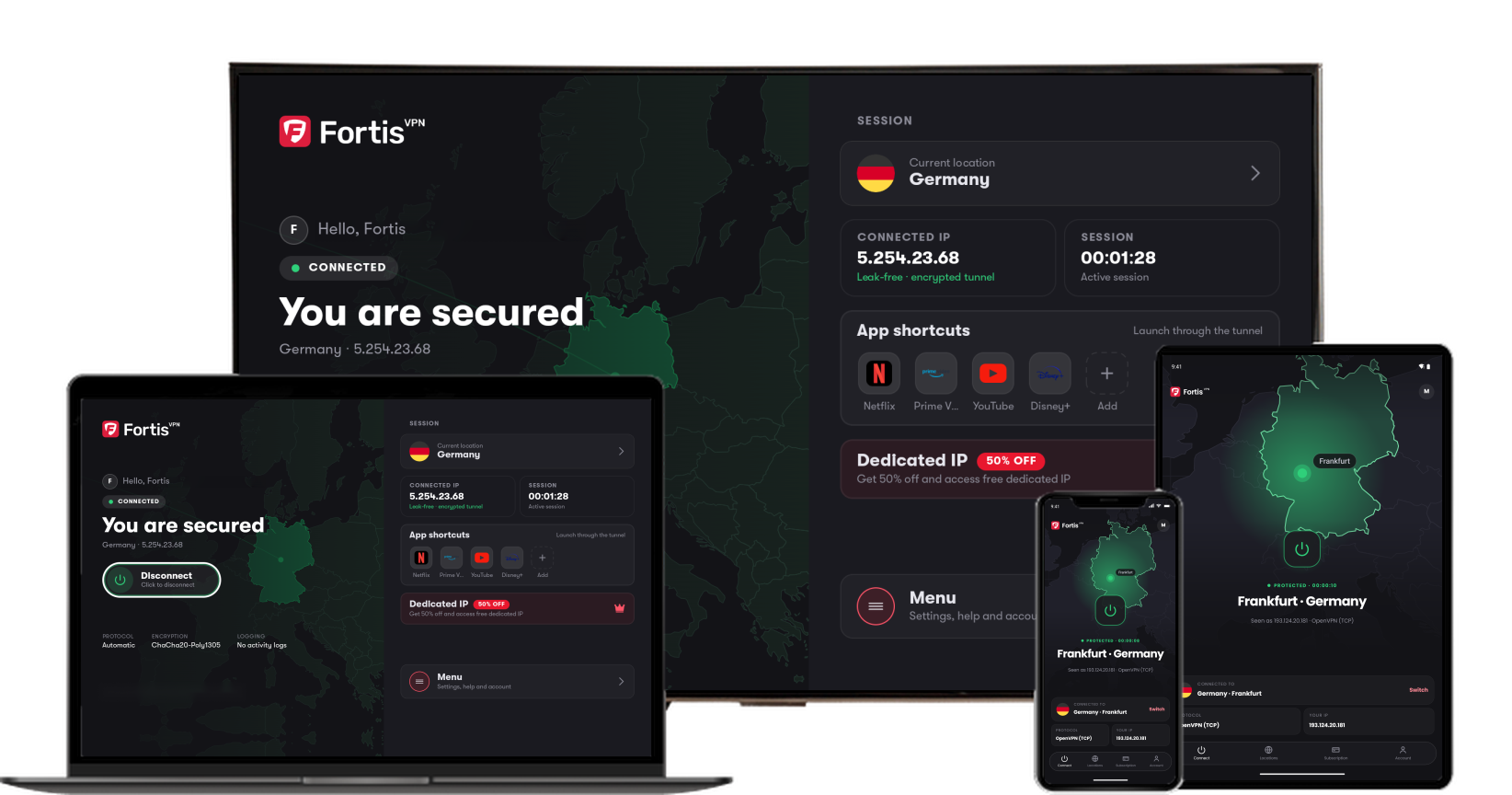
A dedicated IP is an internet address that only you use, in the country you choose. Sites that block shared VPN addresses are less likely to block it. You need an active Fortis plan first.
- 1
Select Dedicated IP
On the home screen, select Current location and press the Select button (the centre of the ring). Press Down on the ring until Dedicated IP is selected, then press the Select button (the centre of the ring).
- 2
Choose a country
Press Down to the country you want, then press the Select button (the centre of the ring). Your dedicated IP can't be moved to another country later. The monthly price is shown next to Continue.
- 3
Press Continue with Amazon
Check the country and the price, then press the Select button (the centre of the ring) on Continue with Amazon.
- 4
Confirm in Amazon
Amazon opens its own purchase window. Follow the steps on the screen to confirm.
- 5
If Amazon asks for payment details
Add a card and address at amazon.com/mykps, then press the Select button (the centre of the ring) on Continue to checkout.
- 6
If you go back without buying
Fortis shows No purchase made and nothing is charged. Press the Select button (the centre of the ring) on Try again to choose a country again, or press Right and choose Cancel.
Click the picture to see it larger.
To stop paying for the dedicated IP, cancel it in your Amazon subscriptions. See Cancel a plan bought on Google Play or Amazon.
Help with Fortis on Fire TV · Last updated October 11, 2026
Still need help?
Our team is available 24/7. Tell us your device, app version, and the location you tried.