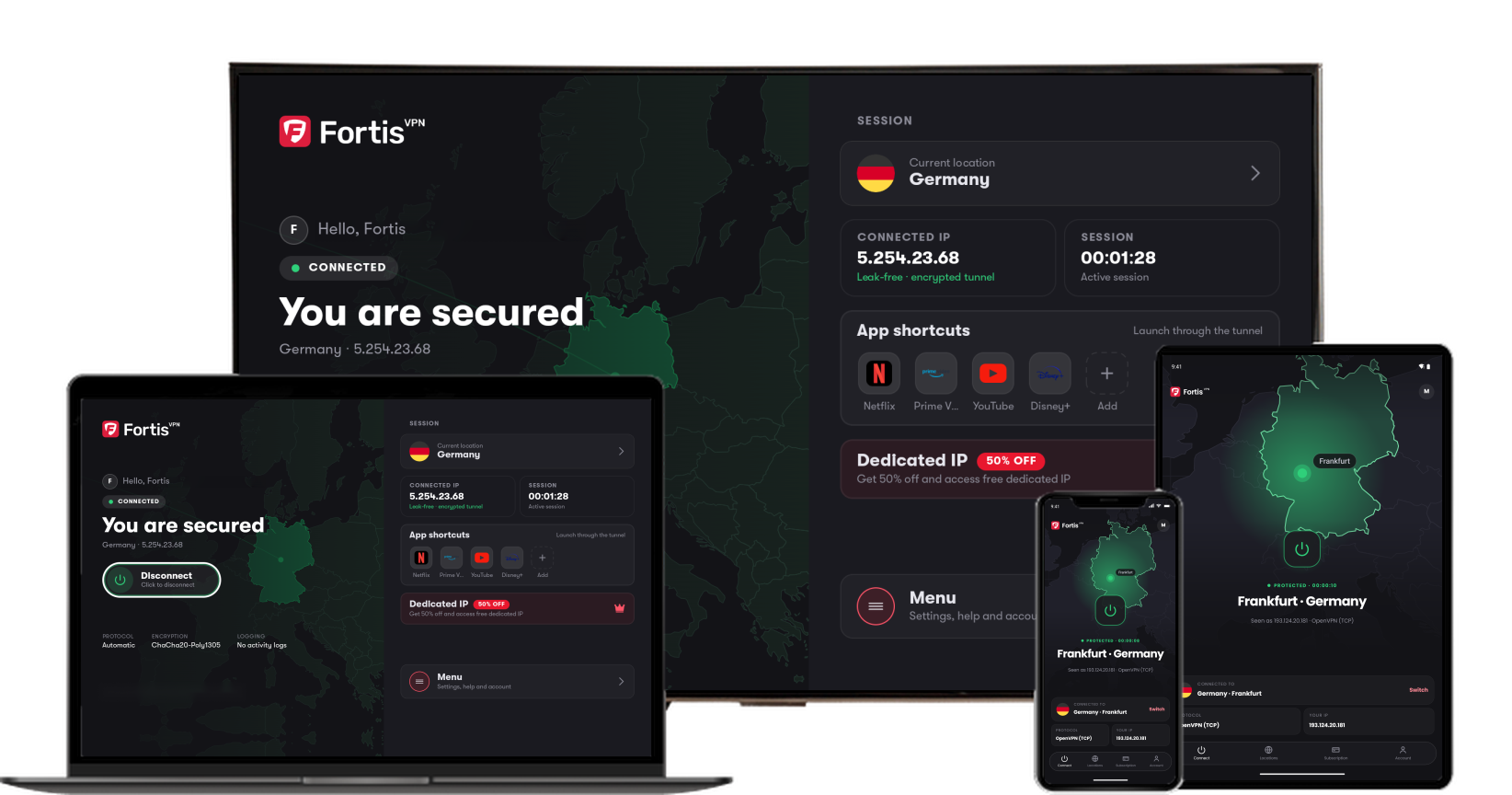
The protocol is the method Fortis uses to build the secure connection. Leave it on Automatic unless the VPN will not connect on your network.
- 1
Open Menu
On the home screen, press Right on the ring, then Down until Menu is selected. Press the Select button (the centre of the ring).
- 2
Open Settings
Settings is selected. Press the Select button (the centre of the ring).
- 3
Open Protocol
Protocol is the first row. It shows the protocol in use, such as Automatic. Press the Select button (the centre of the ring).
- 4
Pick a protocol
Press Down or Up to Automatic, WireGuard, IKEv2, UDP or TCP, then press the Select button (the centre of the ring). WireGuard is fast on most networks. TCP works best on strict networks such as hotels.
- 5
Check the new protocol
Fortis saves your choice and goes back to Settings. The Protocol row shows the new protocol.
Click the picture to see it larger.
Help with Fortis on Fire TV · Last updated October 11, 2026
Still need help?
Our team is available 24/7. Tell us your device, app version, and the location you tried.