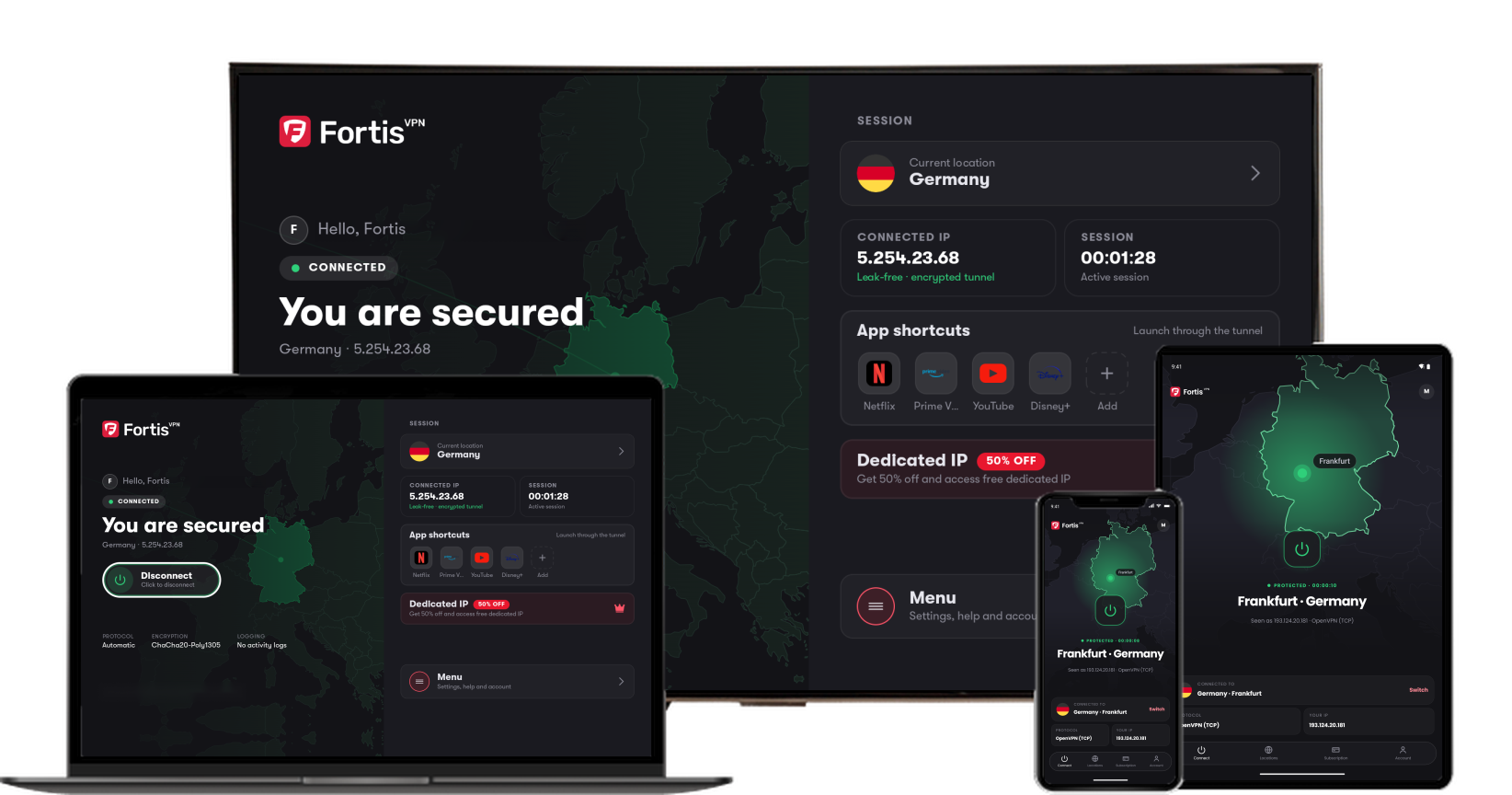
Split tunnelling means only some apps go through the VPN. Everything else uses your normal connection. It applies from your next connection.
- 1
Open Menu, then Settings
On the home screen, select Menu and press the Select button (the centre of the ring). Then press the Select button (the centre of the ring) on Settings.
- 2
Select Split tunnelling
Press Down on the ring until Split tunnelling is selected, then press the Select button (the centre of the ring).
- 3
Choose how it works
Press Right on the ring, then Down to pick a mode and press the Select button (the centre of the ring). Do not allow selected apps to use the VPN keeps the apps you tick off the VPN. Only allow selected apps to use the VPN sends only the ticked apps through it.
- 4
Tick the apps
Press Down to an app under APPS ON THIS TV, then press the Select button (the centre of the ring) to tick it. Do the same for each app you want.
- 5
Press Save
Keep pressing Down past the last app until Save is selected, then press the Select button (the centre of the ring).
- 6
Split tunnelling is on
Fortis goes back to Settings and the Split tunnelling switch is on. To send every app through the VPN again, press the Select button (the centre of the ring) on it to turn it off.
Click the picture to see it larger.
Help with Fortis on Fire TV · Last updated October 11, 2026
Still need help?
Our team is available 24/7. Tell us your device, app version, and the location you tried.