- 1
Find the Fortis icon next to the clock
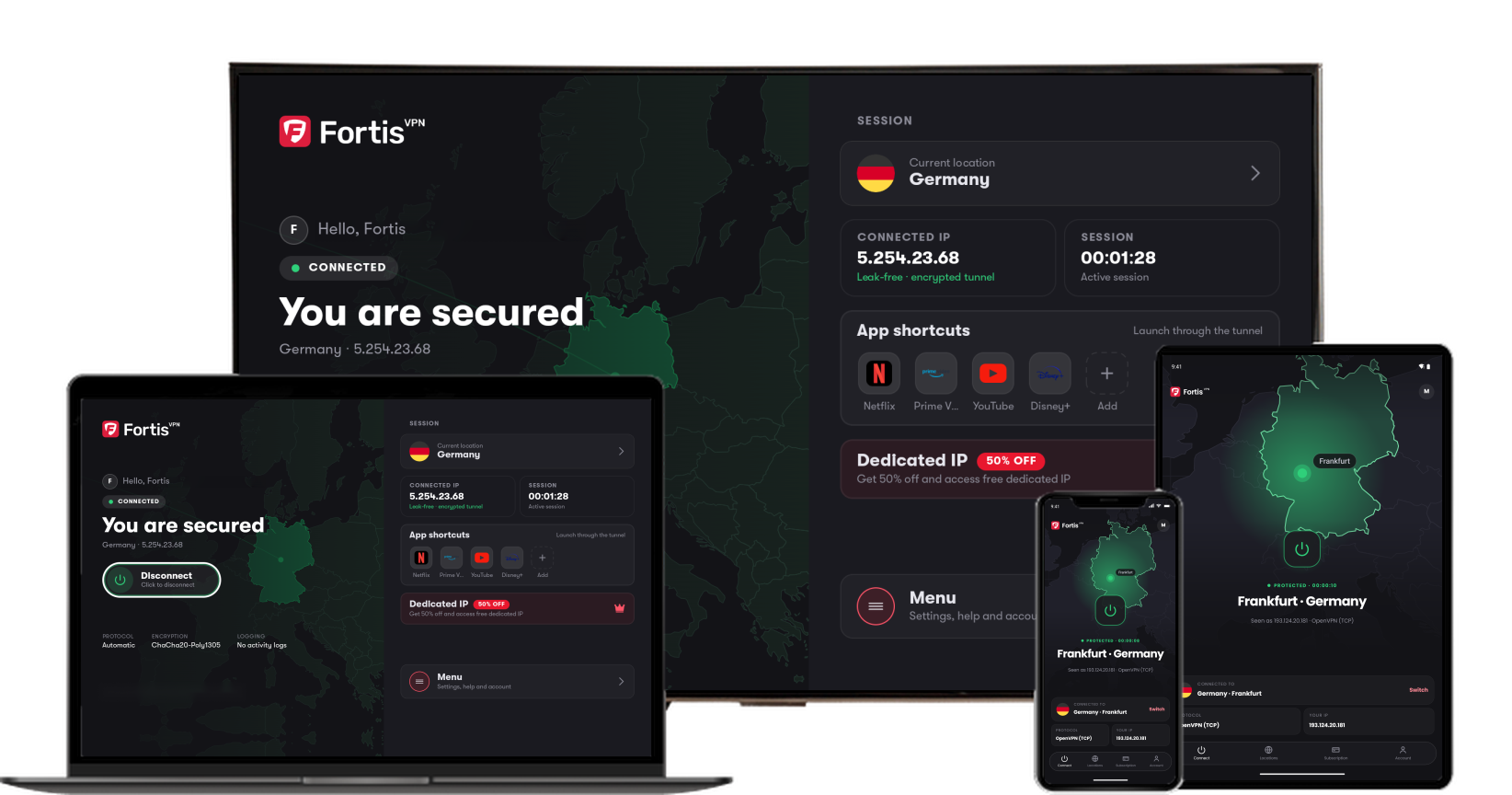
While Fortis is running, its icon sits at the bottom-right of your screen, next to the clock. If you do not see it, click the small arrow next to the clock. Click the icon for a small panel with the power button. Right-click it for a menu with Connect or Disconnect, Change location…, Open Fortis and Quit.
- 2
Click the Compact mode button
It is at the top-right of the Fortis window, to the left of the minimise button.
- 3
Use the small window
The small window has the power button, your location, the protocol and your IP. Fortis remembers this choice next time. To go back, click Back to the full window.
- 4
Closing Fortis while the VPN is on
Fortis asks what you want. Stay connected keeps the VPN on. Close and disconnect turns it off and closes Fortis. To never see this question, turn on Start minimised to tray in Settings.
No picture for this step. This is the picture from step 2.
Fortis for Windows · Last updated September 30, 2026
Still need help?
Our team is available 24/7. Tell us your device, app version, and the location you tried.