- 1
Click the red power button
Click Connect in the menu on the left, then click the big red power button. Or press Ctrl + Shift + C on your keyboard. It works even when the Fortis window is closed.
- 2
Wait a few seconds
The screen turns orange and shows CONNECTING. Click the button again if you want to cancel.
- 3
Check that you are protected
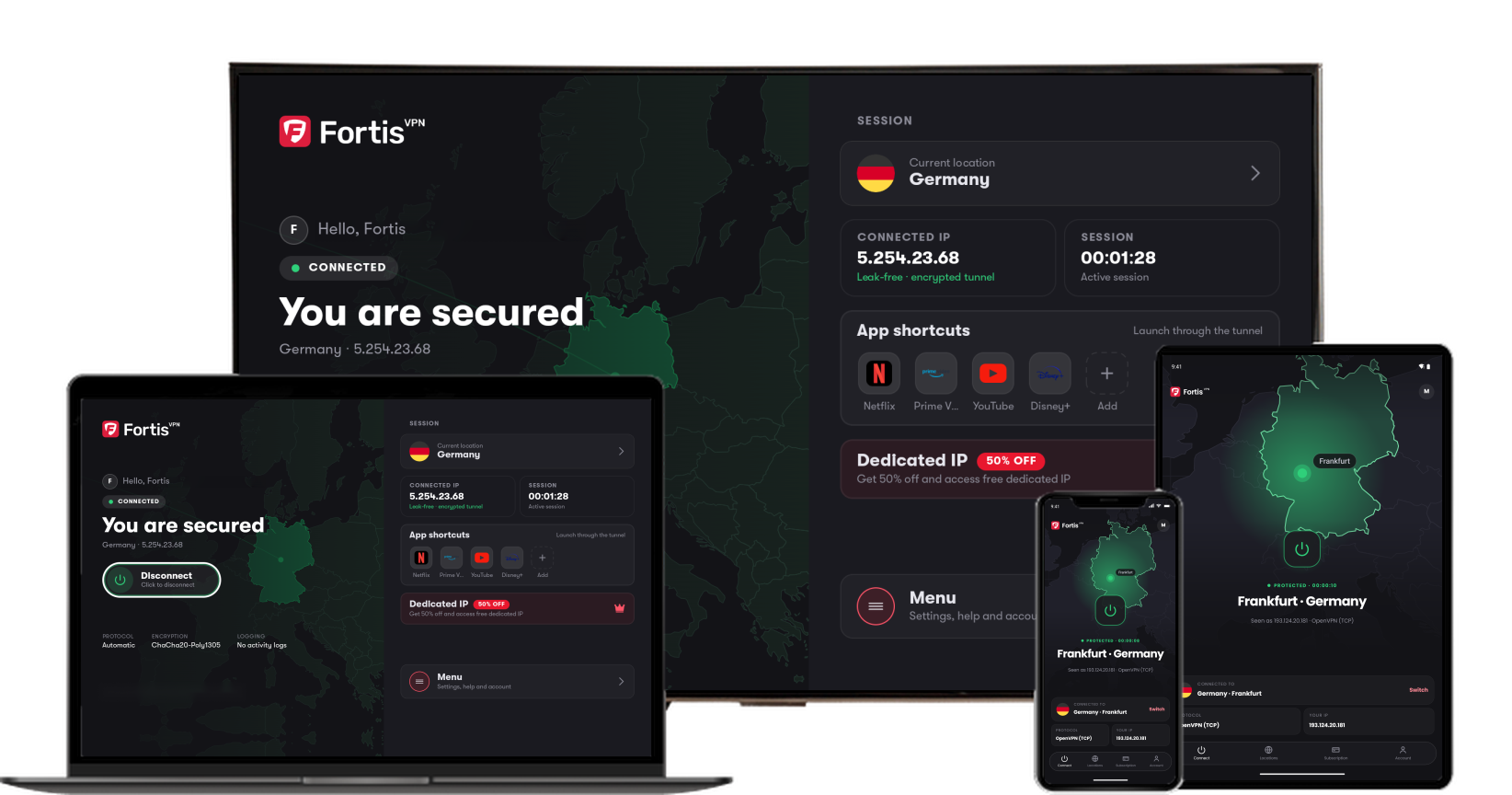
When the screen turns green and shows PROTECTED, the VPN is on. The big name is the country you are connected to. YOUR IP is the address websites now see. It belongs to Fortis, not to you.
- 4
Disconnect
Click the green power button. Fortis disconnects straight away, without asking, and shows Disconnected. in the corner.
Click the picture to see it larger.
If the screen shows CONNECTION FAILED, see Fortis will not connect.
Fortis for Windows · Last updated September 30, 2026
Still need help?
Our team is available 24/7. Tell us your device, app version, and the location you tried.