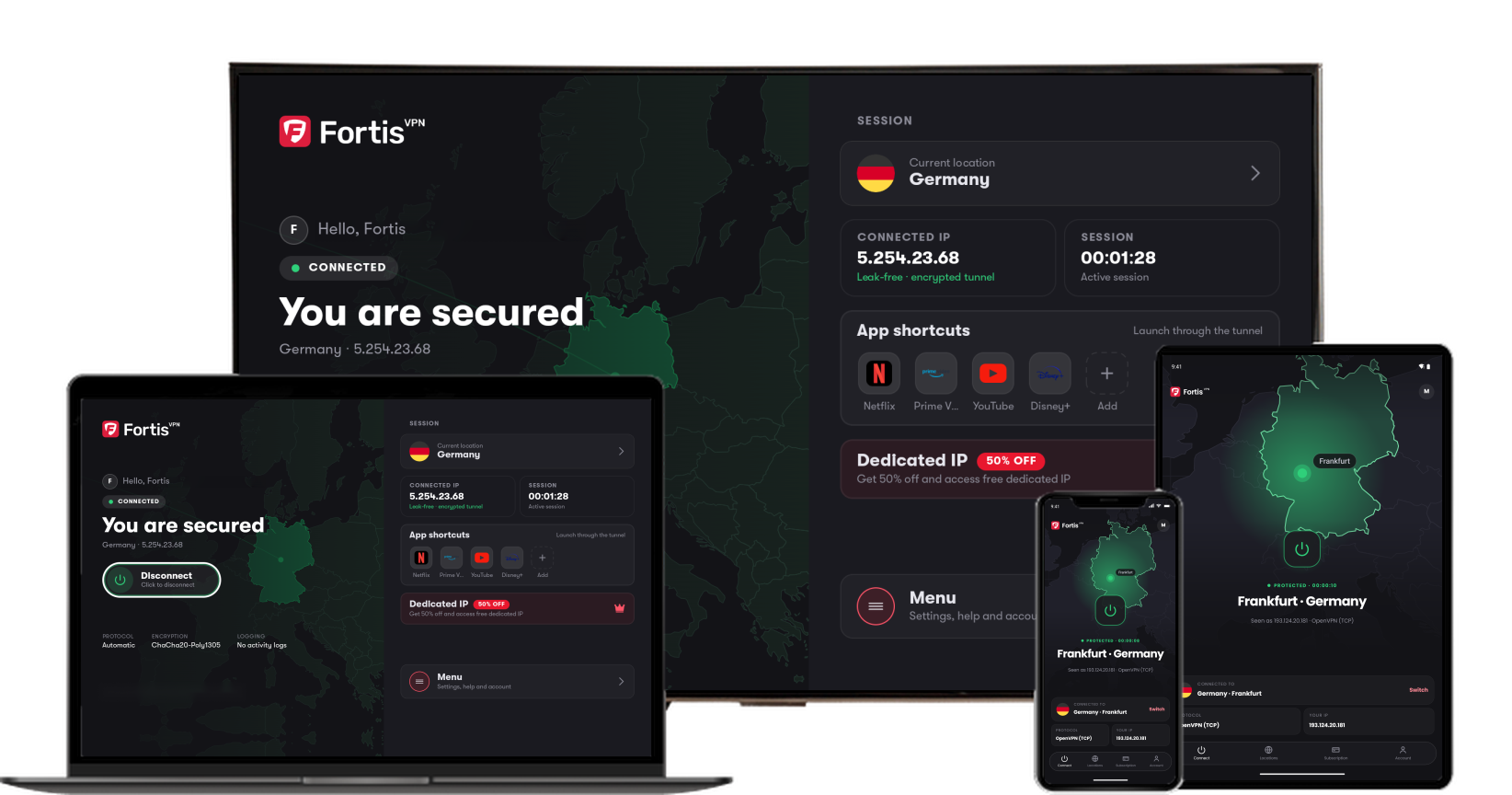
Fortis works on Windows 10 and Windows 11. You need to be allowed to install programs on the PC. On a work or school computer, ask the person who manages it.
- 1
Download the installer
Click the button. Your browser saves a file named FortisVPN-Setup in your Downloads folder.
- 2
Open the file and allow it
Open your Downloads folder and double-click FortisVPN-Setup. When Windows asks Do you want to allow this app to make changes to your device?, click Yes.
- 3
Pick your language
Choose your language and click OK.
- 4
Choose the options
Leave Create a desktop shortcut ticked. Tick Start Fortis VPN with Windows if you want Fortis to open by itself every time you turn on the PC. Click Next.
- 5
Click Install and wait
Setup installs the VPN service and the network drivers. This can take a few minutes.
- 6
Click Finish
Leave Launch Fortis VPN ticked and click Finish. Fortis opens on the sign-in screen.
- 7
Install the network adapter
The first time you sign in, Fortis shows Install the Fortis network adapter. Click Install adapter, then click Yes when Windows asks for permission. Fortis shows Fortis adapter installed. If you click Later, Fortis asks again the first time you connect.
If Windows shows a blue Windows protected your PC screen, or setup stops with an error, see FortisVPN for Windows will not install.
Next: Create your account and start the free trial, or Sign in if you already have an account.
Fortis for Windows · Last updated September 30, 2026
Still need help?
Our team is available 24/7. Tell us your device, app version, and the location you tried.