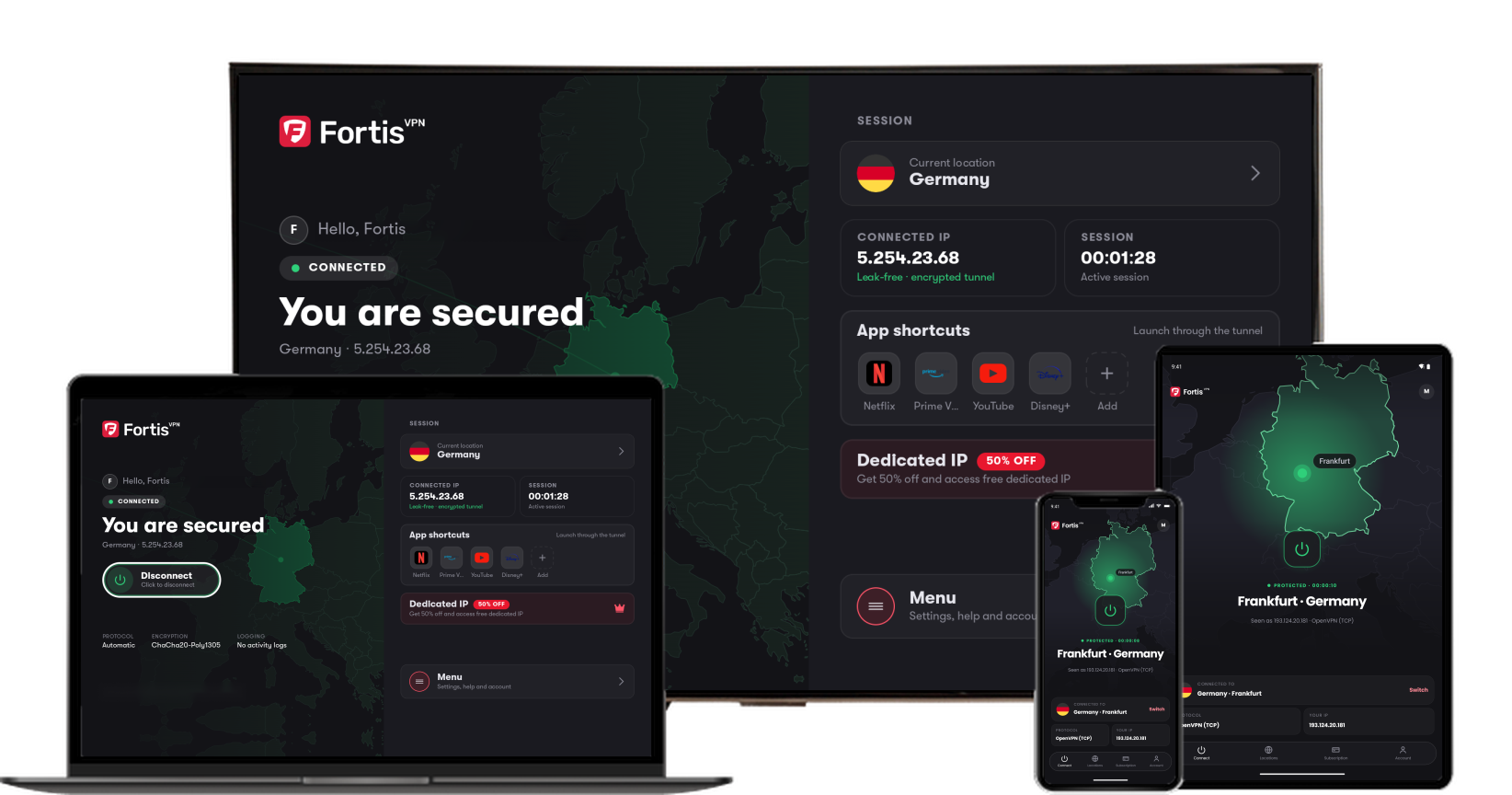
Install and connect FortisVPN on Android TV or Google TV
From the Play Store to your first connection, plus fixes when it will not connect.
Last updated September 25, 2026
Install
- On your TV, open Google Play Store and search for FortisVPN.
- Install the app and open it.
- Sign in with the email and password you use on your other devices.
If your TV's Play Store does not list the app, check that the TV runs Android TV or Google TV (not a generic Android box) and that it is signed in to a Google account.
Connect
- Choose a location or use Smart Connect for the fastest server.
- Press Connect. The first time, the TV shows a system dialog asking to set up a VPN. Select OK.
- The VPN icon appears in the status area when connected.
It will not connect
- Restart the TV and try again. TV devices keep apps in memory for a long time, and a full restart clears stale network state.
- Change protocol in Settings → Protocol. Try OpenVPN (TCP) if WireGuard fails.
- Check the VPN permission dialog was accepted. If you pressed Back, press Connect again.
- Only one VPN can run. Uninstall any other VPN app on the TV.
- "Your device does not support VPN applications" – see this guide.
Keep it connected
Enable Run on start-up in the app so the VPN reconnects when the TV wakes.
Streaming apps still see your real location
Force-close the streaming app after connecting so it re-checks its location. See Streaming app buffering or blocked on TV.
Still stuck?
Our support team is available 24/7. Open the chat bubble in the bottom-right corner of this page, or email [email protected] with your device, app version, and the server location you were trying to use.