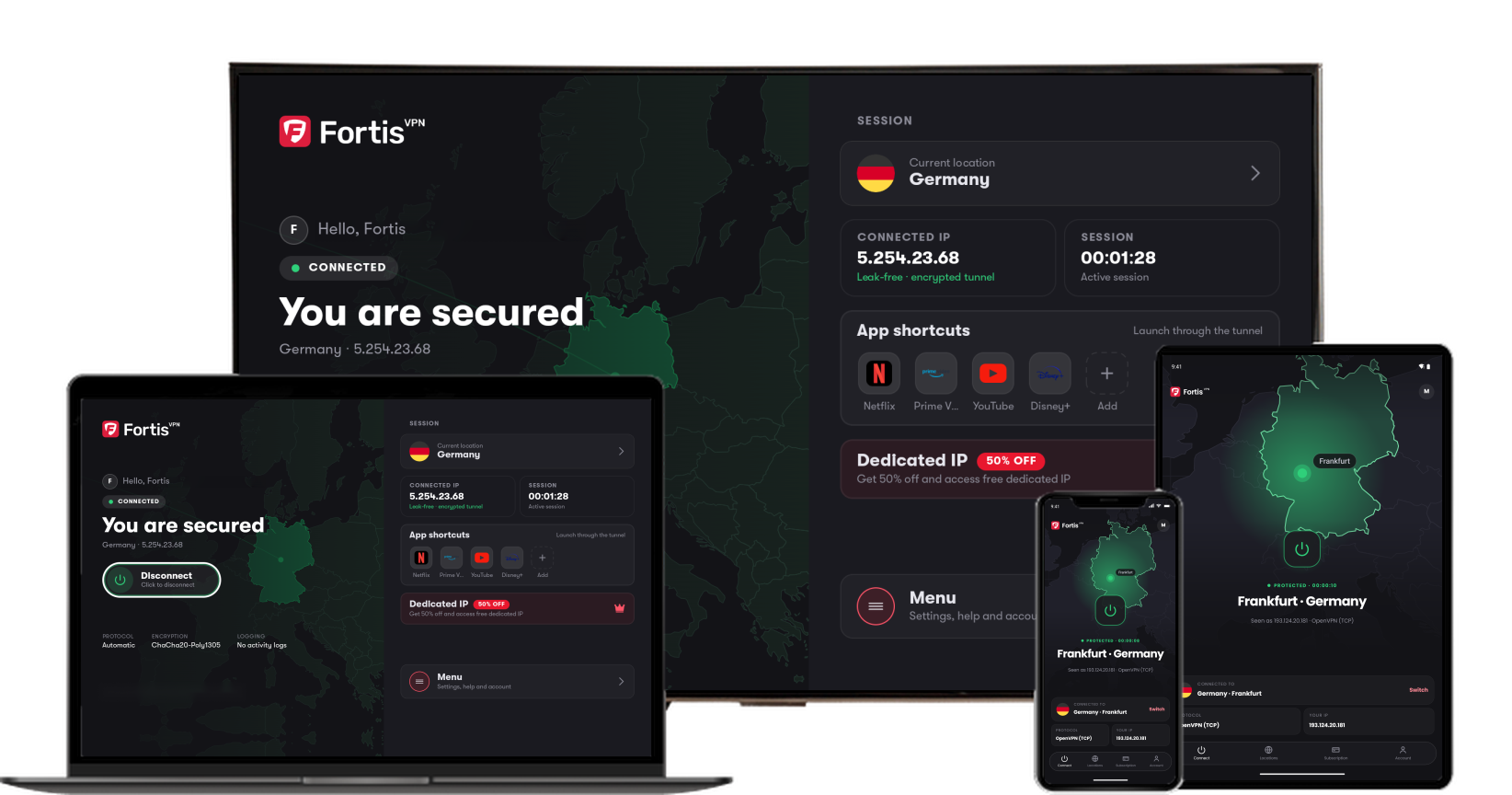
Install and connect FortisVPN on Fire TV and Fire TV Stick
Setup from the Amazon Appstore and fixes for common connection problems.
Last updated September 25, 2026
Install
- On the Fire TV home screen, select Find → Search and type FortisVPN.
- Open the app listing and select Get or Download.
- Open the app and sign in with your FortisVPN email and password.
Connect
- Pick a location or use Smart Connect.
- Select Connect. Fire OS shows a one-time dialog asking permission to set up a VPN. Select OK.
Supported devices
FortisVPN runs on Fire TV Stick (2nd generation and later), Fire TV Stick 4K and 4K Max, Fire TV Cube, and Fire TV Edition televisions. First-generation Fire TV Sticks do not support VPN apps.
It will not connect or keeps dropping
- Restart the Fire TV from Settings → My Fire TV → Restart.
- Switch protocol in the app's Settings → Protocol. OpenVPN (TCP) is the most reliable on crowded Wi-Fi.
- Move the stick closer to the router or use an Ethernet adapter. Fire TV Sticks have weak Wi-Fi antennas, and a weak signal looks like a VPN problem.
- Uninstall other VPN apps from Settings → Applications → Manage Installed Applications.
- Clear the app's cache from the same screen, then sign in again.
Playback is slow while connected
See Streaming app buffering or blocked on TV.
Still stuck?
Our support team is available 24/7. Open the chat bubble in the bottom-right corner of this page, or email [email protected] with your device, app version, and the server location you were trying to use.